About Predefined Applicative Rules
There are mainly two ways to implement the intelligence that checks whether the kitchen is compliant with manufacturer business rules:
- Product rules: These rules define the interaction between multiple parameters of the same cabinet. It is not discussed here, please see Range management section for more information.
- Applicative rules: These rules define the behavior in a specific scenario at the kitchen level. Such rules describe the interaction between cabinets, walls, and so on. They are predefined.
➡️ Refer to Product Rule Concepts 🔗 for detailed information on Product rules.
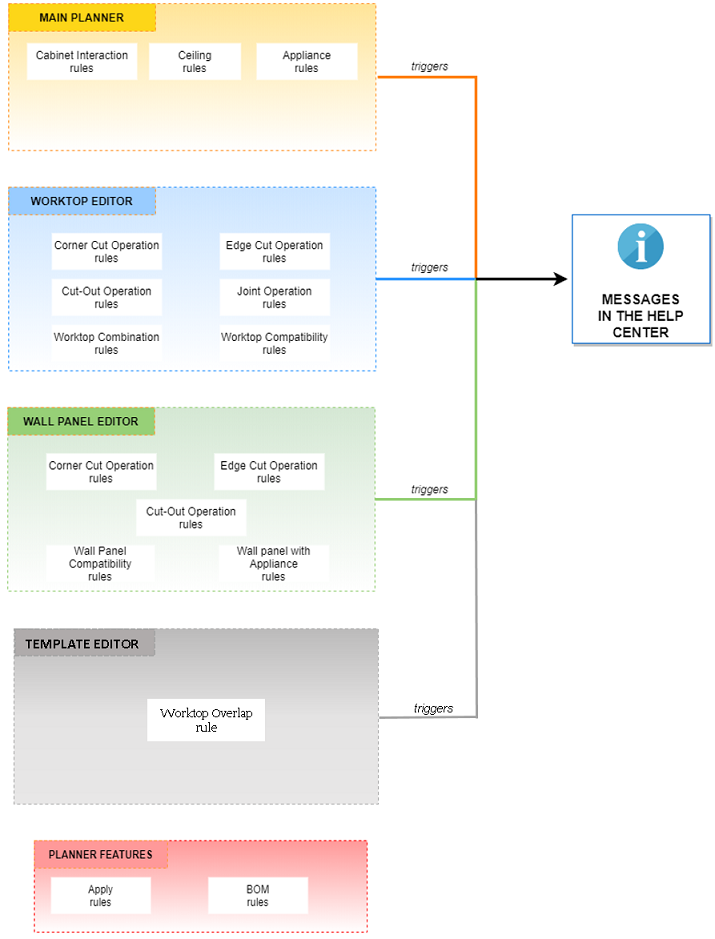
Applicative rules are organized as follows:
Check Rules
Check rules are triggered by specific closed tags or options. They notify the user that some business rules are not obeyed in the current design and display a message in the Help Center. They are divided into:
- Main Planner rules
- Worktop Editor rules
- Wall Panel Editor rules
- Template Editor rules
Notification Level
Notifications have two possible levels in the Kitchen application:
| Level | Icon | Description |
|---|---|---|
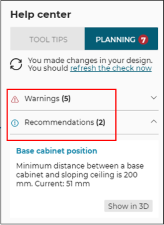
| Recommendation | ℹ | Changes are suggested to the user to avoid planning an invalid kitchen, but they are not mandatory. |
| Warning or Critical | ⚠ | Changes are mandatory because it affects safety in the kitchen, the user must fix it to proceed. Note: both Warning and Critical criticity levels are displayed in the same category in the Kitchen application. Some other applications might choose to differentiate those two levels. |
The Help Center counts the notifications for each level, so that the user remains aware of the modifications to perform on her/his kitchen.
Notes:
- When the rule for expired products is implemented and if expired products are present in the kitchen, the corresponding notifications are displayed in a separated section in the help center. The criticity level of this particular business rule is not taken into account.
- The section titles in the help center can be changed via translations (
kitchen.help_center.recommendations_label,kitchen.help_center.warnings_labelandkitchen.help_center.expired_products_label).
Behavior in the Cabinet Editor
Below is an example of such business rule displayed to the user:
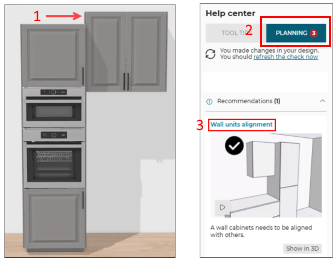
- The tops of the wall and the high cabinets are not aligned.
- A check rule is triggered and an error is displayed to the user via the Help Center.
- The reason of the error and the solution are displayed too.
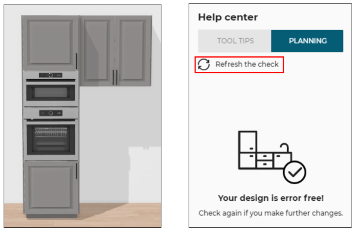
Once the user hasalign the tops of both cabinets, with a difference in altitude distance less than 5mm. Then, s/he refreshes the check in the Help Center to validate that there is no more error with this design.
Apply Rules
Apply rules are triggered for specific actions, and impact elements (i.e. filler, plinth, decoration leg) in the current scenario. The trigger condition is described for each of them.
BOM Rules
BOM Rules are used to add specific products under specific conditions to the Bill of Material (item List) of the project. They are proposed to manage insertion in the project of non-3D items such as light transformers and connectors, or kitchen island fixation blocks.