Configure the Measurement Service
This section describes how to configure and customize the application to take benefit of the Measurement Service. The Measurement Service allows the user to initialize the walls and room dimensions of his project with the result of a measurement done in real life and available in another online system.
Integration
The first Step is to enable the menu item "Use Measure Service" in Step Floorplan in menu "Initiate plan". It has to be activated through the parameter floorPlanImport.planMeasure in the application distribution.
Once activated, click on "Use Measure Service" menu item triggers the Iframe message MeasuringServiceButtonClicked. The integration developer uses this Iframe message to display a pop in in which the end-user can select a measured floorplan. The measured floorplan has to be available online because the business logic has to select it, load it, convert it to the expected JSON format and sent it to the planner.
Once selected and converted the measured floorplan has to be sent to the planner with the Iframe message MeasureServiceImport. The JSON object transmitted must respect the format specified below. Even if the format allows the description of multiple levels, the kitchen planner uses the first level to initialize the walls and openings of the project. The end-user can then start designing the kitchen with the measured floorplan imported.
Floor Layout Format
Foreword
This document describes the different parameters to provide in the json export to get the room measurement service. (All the measurements are in mm).
Available parameters
Version
| Key | Mandatory | Value Type | Description |
|---|---|---|---|
| version | YES | integer | The document version |
Level array
The array of levels of the project.
| Key | Mandatory | Value Type | Description |
|---|---|---|---|
| levelName | YES | string | The level name |
| wallHeight | YES | float | The level wallHeight value |
| rooms | YES | array | The rooms of the level |
Room array
The rooms of the level.
| Key | Mandatory | Value Type | Description |
|---|---|---|---|
| roomName | YES | string | The name of the room |
| walls | YES | array | The wall array |
Wall array
The array of walls of the project (must be a closed room without intersecting segments).
| Key | Mandatory | Value Type | Description |
|---|---|---|---|
| wallHeight | NO | float | The height of the wall if not defined we take the project wallHeight into account |
| pt1 | YES | array | Array of two spatial coordinates |
| pt2 | YES | array | Array of two spatial coordinates |
| bays | NO | array | Can be empty |
| sw | NO | array | Array of baseheight and depth for sloped wall |
2D Points for the wall array
The two 2D points of each wall.
| Key | Mandatory | Value Type | Description |
|---|---|---|---|
| x | YES | float | X spatial coordinates |
| y | YES | float | Y spatial coordinates |
Parameters for the bay array
The information needed to reconstruct the bays.
| Key | Mandatory | Value Type | Description |
|---|---|---|---|
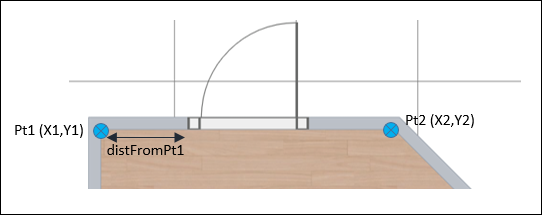
| distanceFromPt1 | YES | float | The distance between the first point of the bay and pt1 of the wall |
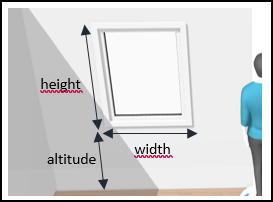
| altitude | YES | float | The altitude between the floor and the bay |
| width | YES | float | The width of the bay |
| height | YES | float | The height of the bay |
| type | YES | string | The shape of the bay ("rectangle") (Not supported for now: "arch" and "round") |
| id | YES | integer | The dbID of the bay to draw in the planner |
Scheme for distFromPt1:
Scheme for bay types:

Scheme for altitude, width and height of a rectangle bay:
Parameters for the sw array
The information needed to reconstruct the sloped walls.
| Key | Mandatory | Value Type | Description |
|---|---|---|---|
| baseheight | YES | integer | The height of the wall from the floor, where the sloped ceiling is located |
| depth | YES | integer | The distance between the start of the sloped ceiling and the smallest height of the wall |
Parameters for the products array
The information needed to reconstruct the products (gas items, ventilation items, electric items, room objects and water supply items).
| Key | Mandatory | Value Type | Description |
|---|---|---|---|
| width | YES | float | The width of the product |
| height | YES | float | The height of the product |
| depth | YES | float | The depth of the product |
| id | YES | string | The dbID of the product to draw in the planner |
| position | YES | object | The position (X and Y spatial coordinates) of the product to draw in the planner |
| orientation | YES | float | The orientation of the product to draw in the planner (counter clockwise angle from X) |
Sample
Here is provided a sample of the complete parameters JSON object:
{
    "version": 0,
    "levels":
    [
        {
            "levelName": "level0",
            "wallHeight": 2500,
            "rooms": [
                {
                    "roomName": "kitchen",
                    "walls": [
                        {
                            "pt1": {
                                "x": 0,
                                "y": 0
                            },
                            "pt2": {
                                "x": 0,
                                "y": 5000.5
                            },
                            "sw": [
                                {
                                    "baseheight": 1300,
                                    "depth": 1400
                                }
                            ]
                        },
                        {
                            "pt1": {
                                "x": 0,
                                "y": 5000.5
                            },
                            "pt2": {
                                "x": 4000,
                                "y": 5000
                            },
                            "sw": [
                                {
                                    "baseheight": 1100,
                                    "depth": 1300
                                }
                            ]
                        },
                        {
                            "pt1": {
                                "x": 4000,
                                "y": 5000
                            },
                            "pt2": {
                                "x": 6000,
                                "y": 4000
                            }
                        },
                        {
                            "pt1": {
                                "x": 6000,
                                "y": 4000
                            },
                            "pt2": {
                                "x": 4000,
                                "y": 0
                            },
                            "bays": [
                                {
                                    "distanceFromPt1": 1000,
                                    "altitude": 1000,
                                    "width": 1200,
                                    "height": 1000,
                                    "type": "rectangle",
                                    "id": 4840
                                }
                            ]
                        },
                        {
                            "pt1": {
                                "x": 4000,
                                "y": 0
                            },
                            "pt2": {
                                "x": 1500,
                                "y": 1000
                            },
                            "bays": [
                                {
                                    "distanceFromPt1": 300,
                                    "altitude": 0,
                                    "width": 1200,
                                    "height": 2000,
                                    "type": "rectangle",
                                    "id": 4840
                                }
                            ]
                        },
                        {
                            "pt1": {
                                "x": 1500,
                                "y": 1000
                            },
                            "pt2": {
                                "x": 0,
                                "y": 0
                            }
                        }
                    ],
                    "products": [
                        {
                          "height": 1000,
                          "depth": 80,
                          "id": "9623",
                          "width": 1200,
                          "position": {
                            "x": 39.999961853027344,
                            "y": 1381.6307373046875,
                            "z": 0
                          },
                          "orientation": 1.5707963267948966
                        },
                        {
                          "height": 100,
                          "depth": 5,
                          "id": "2784",
                          "width": 100,
                          "position": {
                            "x": 2.4999983310699463,
                            "y": 445.74688720703125,
                            "z": 1200
                          },
                          "orientation": 1.5707963267948966
                        }
                    ]
                }
            ]
        }
    ]
}