Project List Widget
Objective
MyProjects widget enables the user to visualize information of their project list. It also brings together the user actions on each project like duplicate, delete, and load a project.
Widget Overview
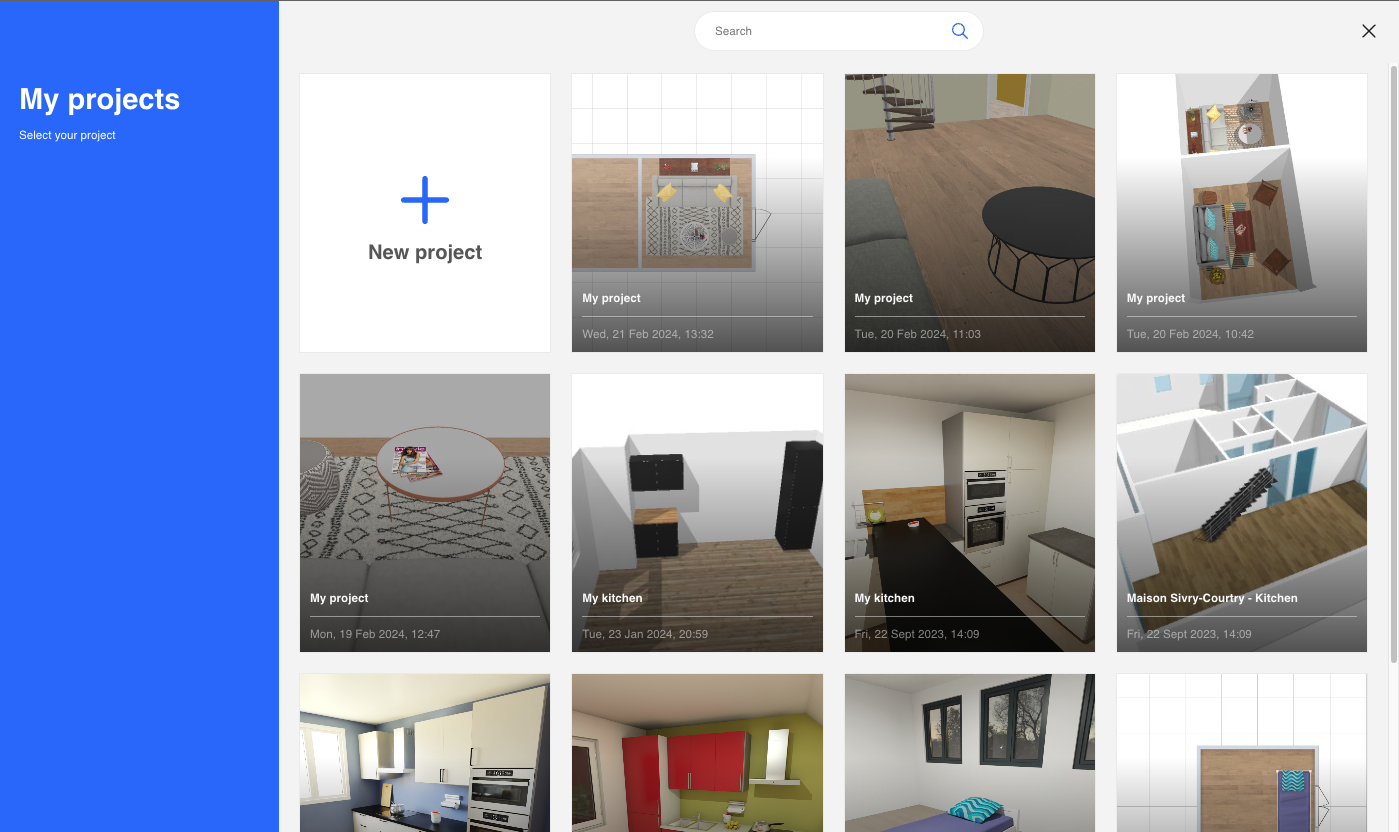
Access
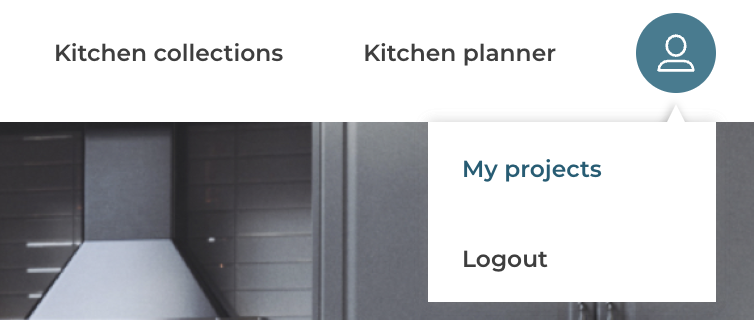
Once user has successfully signed in, he can get access to MyProjects widget through the user menu from Bryo website.
1. Access from user's menu (website)
Context
Like other default widgets,MyProjects should be embedded in the website as an iframe, the communication between the website and default widget should be established on iframe messages. To have an overview of the subject, please refer to window.postMessage() 🔗. .
. Every Message published or subscribed by the MyProjects default widget should respect the following format:
| Key | Type | Description |
|---|---|---|
| event | String | Name of the event, which is used as unique identifier |
| content | Object | Content of the event, which brings arguments helps to event handling |
Example
{
  "event": "event name",
  "content": {
    "key1": "value for key1",
    "key2": "value for key2"
  }
}
Overview of the Synchronization Process
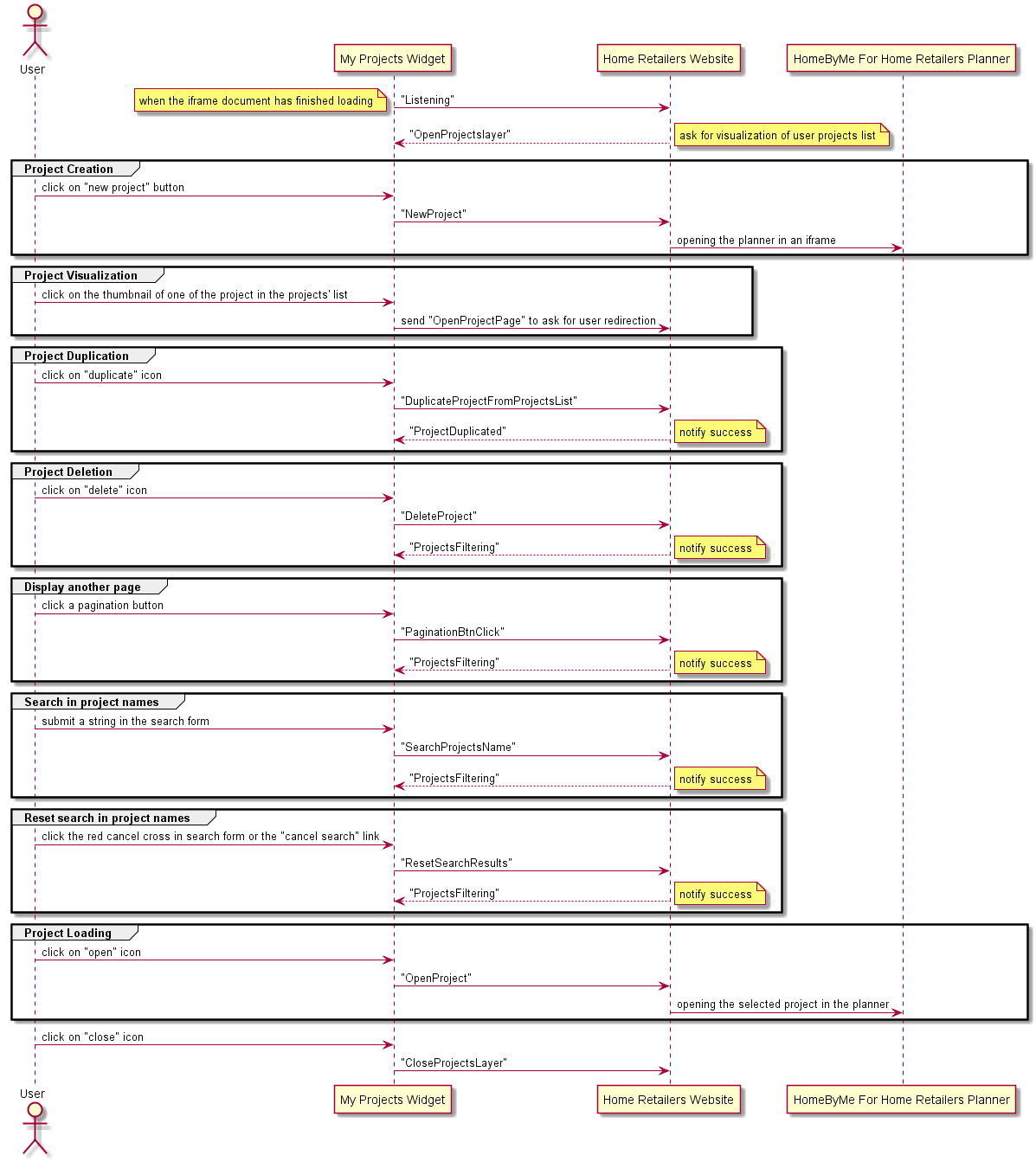
The following sequence disgram explains data synchronization between website and "MyProjects" widget and also the interactions with user and HomeByMe For Kitchen planner.
Published Events (Output events)
Published events are those events that the MyProjects widget will send to the website.
"Listening"
Context
When the document and all sub-resources have finished loading, send the "listening" event to inform the Website(parent window) that it is ready to listen to parent window messages. This event must be sent once and only once.
Message Format
| Key | Type | Value/Template | Description |
|---|---|---|---|
| event | String | "Listening" | - |
Message Example
{
    event: "Listening",
}
"NewProject"
Context
When the user clicks the "new project" button on the MyProjects widget, send a "NewProject" message to inform the website of a request for new project creation.
Message Format
| Key | Type | Value/Template | Description |
|---|---|---|---|
| event | String | "NewProject" | |
| content | Object | dbId: String | dbId: ID of the product stored in the data base. |
Message Example
{
    event: "NewProject",
}
"OpenProjectPage"
Context
When user clicks the thumbnail on the projects' list layer, send an "OpenProjectPage" message to inform the website to redirect the user to the page of the selected project.
Message Format
| Key | Type | Value/Template | Description |
|---|---|---|---|
| event | String | "OpenProjectPage" | |
| content | Object | projectUUID: String | - projectUUID: UUID of the project |
Message Example
{
  "event": "OpenProjectPage",
  "content": {
    "projectUUID": "97AB8B1A-9D53-4306-AE2C-8E3A0025EB13"
  }
}
"DuplicateProjectFromProjectsList"
Context
When the user click on "duplicate" icon on the MyProjects widget, send "DuplicateProjectFromProjectsList" message to inform Website of request for project duplication.
Message Format
| Key | Type | Value/Template | Description |
|---|---|---|---|
| event | String | "DuplicateProjectFromProjectsList" | |
| content | Object | id: String name: String search: String | - id: Id of the project - name: Name of the project - search: String to search |
Message Example
{
  "event": "DuplicateProjectFromProjectsList",
  "content": {
    "id": "13609",
    "name": "test case 2 (copy)",
    "search": ""
  }
}
"DeleteProject"
Context
When the user clicks the "delete" icon on the MyProjects widget, send "DeleteProject" message to inform Website of request for project deletion and refresh the current projects on page.
Message Format
| Key | Type | Value/Template | Description |
|---|---|---|---|
| event | String | "DeleteProject" | |
| content | Object | uuid: String page: Number name: String | - uuid: UUID of the project - page: Index of the page currently displayed - name: String to search in projects names (currently in the search input) |
Message Example
{
  "event": "DeleteProject",
  "content": {
    "page": 2,
    "name": "bedrooms",
    "uuid": "97AB8B1A-9D53-4306-AE2C-8E3A0025EB13"
  }
}
"PaginationBtnClick"
Context
When the user clicks a pagination button, at the bottom of the MyProjects widget, send "PaginationBtnClick" message to inform Website of request to change page and load the projects requested.
Message Format
| Key | Type | Value/Template | Description |
|---|---|---|---|
| event | String | "PaginationBtnClick" | |
| content | Object | page: Number name: String | - page: Index of the page clicked by the user - name: String to search in projects names (currently in the search input) |
Message Example
{
  "event": "PaginationBtnClick",
  "content": {
    "page": 2,
    "name": "bedrooms"
  }
}
"SearchProjectsName"
Context
When the user submits a string in the search input in the header of the MyProjects widget, send "SearchProjectsName" message to inform Website of request to filter projects based on that string: it will return all projects that contain this string in their names (could be none at all).
Message Format
| Key | Type | Value/Template | Description |
|---|---|---|---|
| event | String | "SearchProjectsName" | |
| content | Object | name: String | - name: String to search in projects names |
Message Example
{
  "event": "SearchProjectsName",
  "content": {
    "name": "bedrooms"
  }
}
"ResetSearchResults"
Context
When the user has already submitted a string in the search input (the results are currently displayed), and he clicks the red cancel cross in the search form or clicks the "cancel search" link in the MyProjects widget, send "ResetSearchResults" message to inform Website of request to cancel the search filter and refresh the displayed projects.
Message Format
| Key | Type | Value/Template | Description |
|---|---|---|---|
| event | String | "ResetSearchResults" |
Message Example
{
  "event": "ResetSearchResults"
}
"OpenProject"
Context
When the user click on "load" icon on the MyProjects widget, send "OpenProject" message to inform Website of request for project loading.
Message Format
| Key | Type | Value/Template | Description |
|---|---|---|---|
| event | String | "OpenProject" | |
| content | Object | id: String | - id: ID of the project |
Message Example
{
  "event": "OpenProject",
  "content": {
    "id": "7563"
  }
}
"CloseProjectsLayer"
Context
When the user click on "close" icon on the MyProjects widget, send "CloseProjectsLayer" message to inform the Website that the MyProjects widget has been destroyed.
Message Format
| Key | Type | Value/Template | Description |
|---|---|---|---|
| event | String | "CloseProjectsLayer" | - |
Message Example
{
  "event": "CloseProjectsLayer"
}
Subscribed Events (Input events)
Subscribed events are those events go from website to default widget.
"OpenProjectslayer"
Context
When the MyProjects widget has finished being loaded (thus with the reception of message "Listening" from widget), website will send "OpenProjectslayer" event to MyProjects widget ask for visulization of user projects list.
Message Format
| Key | Type | Value/Template | Description |
|---|---|---|---|
| event | String | "OpenProjectslayer" | |
| content | Object | count: Integerlanguage: Stringnamespace: Stringpage: IntegerprojectsPerPage: Integertranslation: Objectprojects: Array | - count: number of projects of user - language: locale string - namespace: namespace to configure i18n for translation - page: index of the page to display - projectsPerPage: maximum number of projects displayed on one page - translation: translation of the widget - projects: User projects list, each element in the array must be an object containing the following properties, illustrated as below |
Each elements of projects should have following properties:
| Key | Type | Description |
|---|---|---|
projectID | Integer | ID of the project |
projectName | String | Name of the project |
description | String | Description of the project |
dateCreation | String | Creation date of the project |
overview | String | URL of the overview image of the project |
Message Example
{
  "event": "OpenProjectslayer",
  "content": {
    "count": 19,
    "language": "en-GB",
    "namespace": "translation",
    "page": 1,
    "projects": [
      {
        "projectID": 7563,
        "projectName": "My project",
        "description": "123",
        "dateCreation": "2020-01-06T13:39:46.000Z",
        "projectID": "15964",
        "overview": "https://byme-enterprise-preprod.s3.eu-west-1.amazonaws.com/data/homebymeProjects/0634C6A2-CCCB-4C57-8669-4E9426D130F2/images/renderHQ/26FBF26E-509C-44E2-9F9A-332543F59604.jpg"
      },
      {
        "projectID": 8526,
        "projectName": "My project (copy)",
        "description": "123",
        "dateCreation": "2020-02-13T15:27:45.000Z",
        "projectUUID": "9D376E93-C4E6-4038-9E8E-96A8A73011DA",
        "overview": "https://byme-enterprise-preprod.s3.eu-west-1.amazonaws.com/data/homebymeProjects/9D376E93-C4E6-4038-9E8E-96A8A73011DA/images/renderHQ/26FBF26E-509C-44E2-9F9A-332543F59604.jpg"
      }
    ],
    "projectsPerPage": 11,
    "translation": {
      "projects_list": {
        "load_project": "Open Project"
      }
    }
  }
}
"ProjectDuplicated"
Context
When the selected project has been duplicated, website will send "ProjectDuplicated" message to notify the success, thus to inform the MyProjects widget to refresh the view.
Message Format
| Key | Type | Value/Template | Description |
|---|---|---|---|
| event | String | "ProjectDuplicated" | |
| content | Object | currentPage: Integer name: String resultsCount: String length: Integer projects: Array | - currentPage: If project duplication was done on a search results page, number of this page - name: If project duplication was done on a search results page, string to search in projects names (currently in the search input) - resultsCount: Total number of projects matching the parameters passed - length: number of projects actually sent in the projects property - projects: User projects list matching the parameters passed, each element in the array must be an object containing the following properties, illustrated as below |
Each elements of projects should have following properties:
| Key | Type | Description |
|---|---|---|
projectID | Integer | ID of the project |
projectName | String | Name of the project |
description | String | Description of the project |
dateCreation | String | Creation date of the project |
projectUUID | String | UUID of the project |
overview | String | URL of the overview image of the project |
Message Example
{
  "event": "ProjectDuplicated",
  "content": {
    "currentPage": 1,
    "name": "",
    "resultsCount": 21,
    "length": 11,
    "projects": [{
        "projectID": 8749,
        "projectName": "My project",
        "description": "123",
        "dateCreation": "2020-02-21T16:07:55.000Z",
        "projectUUID": "CE776108-5784-4C4F-937E-2A0C07C749D2",
        "overview": "https://byme-enterprise-preprod.s3.eu-west-1.amazonaws.com/data/homebymeProjects/CE776108-5784-4C4F-937E-2A0C07C749D2/images/renderHQ/26FBF26E-509C-44E2-9F9A-332543F59604.jpg"
    }]
  }
}
"ProjectsFiltering"
Context
When there is a need to refresh the current page of projects list, website will send "ProjectsFiltering" message to inform the MyProjects widget to refresh the view. Typical use cases are: project deletion, search project by name, switch to another page of projects' list.
Message Format
| Key | Type | Value/Template | Description |
|---|---|---|---|
| event | String | "ProjectsFiltering" | |
| content | Object | currentPage: Integer name: String resultsCount: String length: Integer projects: Array | - currentPage: Current active page number - name: String entered in the search input to filter projects names on - resultsCount: Total number of projects matching the parameters passed - length: Number of projects actually sent in the projects property - projects: User projects list matching the parameters passed, each element in the array must be an object containing the following properties, illustrated as below |
Each elements of projects should have following properties:
| Key | Type | Description |
|---|---|---|
projectID | Integer | ID of the project |
projectName | String | Name of the project |
description | String | Description of the project |
dateCreation | String | Creation date of the project |
projectUUID | String | UUID of the project |
overview | String | URL of the overview image of the project |
Message Example
{
  "event": "ProjectsFiltering",
  "content": {
    "currentPage": 1,
    "name": "",
    "resultsCount": 21,
    "length": 11,
    "projects": [{
        "projectID": 8749,
        "projectName": "My project",
        "description": "123",
        "dateCreation": "2020-02-21T16:07:55.000Z",
        "projectUUID": "CE776108-5784-4C4F-937E-2A0C07C749D2",
        "overview": "https://byme-enterprise-preprod.s3.eu-west-1.amazonaws.com/data/homebymeProjects/CE776108-5784-4C4F-937E-2A0C07C749D2/images/renderHQ/26FBF26E-509C-44E2-9F9A-332543F59604.jpg"
    }]
  }
}
Library
Website
Website could be default website powered by 3DVia, or any client website where embed the HomeByMe For Kitchen Retailers planner and MyProjects widget. In the context of integration of MyProjects widget, it refers to be the parent window of widget iframe.
Application
HomeByMe for Kitchen Retailers planner
Branding
This widget like all other widgets, will benefit from branding styles when opened from the planner or the website. To learn more on how to customize the look of the widgets, please refer the Integrate Branding section 🔗.