Planner Context Parameters
Overview
This document presents the concept of product context parameters. It should not be confused with application distribution settings or with product parameters.
What are product context parameters ?
A context parameter is applied to a product in the context of a planner. Similarly to a product parameter it has a name, a type and a value, but it is completely managed by the planner.
Context parameters represent the context of a product inside the current planner situation, and their nature depends on the kind of planner you are using. For the Kitchen planner, see below the list of supported context parameters.
Comparison with product parameters
Product parameters :
- are created and managed by the Range Managers.
- can represent anything. The semantics is not known by the planner.
- can be changed dynamically by product rules.
Product context parameters :
- are managed by the planner.
- each represent a specific piece of logic. The semantics is known by the planner.
- cannot be changed dynamically by product rules.
Product context parameters can still be used in product rules as triggers to modify the value of a product parameter. See the product rules documentation.
Kitchen context parameters
Here is the list of supported context parameters in the Kitchen planner.
Back to back context
We set the following context parameters on every cabinet.
| Parameter Name | Parameter Type | Function |
|---|---|---|
isBackToBack | boolean | set to true if the furniture is back to back with another furniture. |
backToBackSidesLength | real | sum of the depth of the 2 back to back furnitures if the furniture is back to back with another, depth of the furniture otherwise. |
backToBackSidesVisible | string |
Examples
Example 1
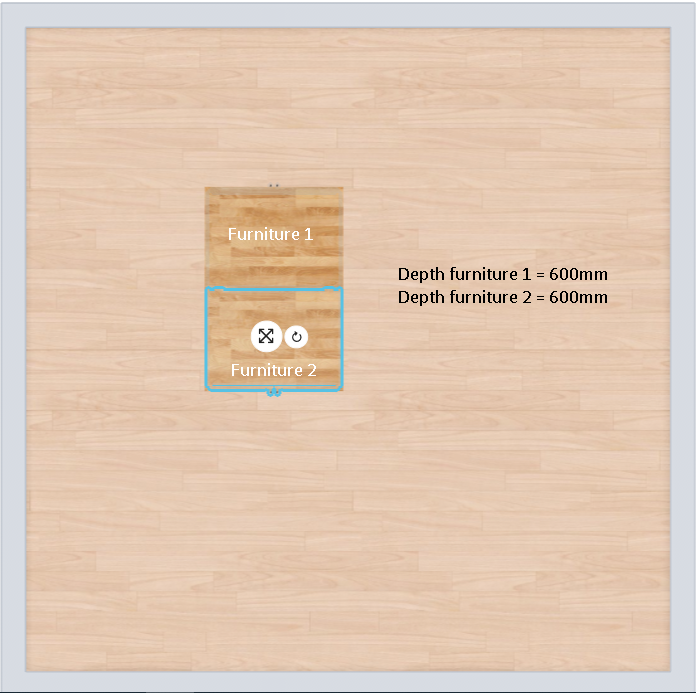
In this example, the context parameters are set as:
Furniture 1:
{
    isBackToBack: true,
    backToBackSidesLength: 1200,
    backToBackSidesVisible: "both"
}
Furniture 2:
{
    isBackToBack: true,
    backToBackSidesLength: 1200,
    backToBackSidesVisible: "both"
}
Example 2
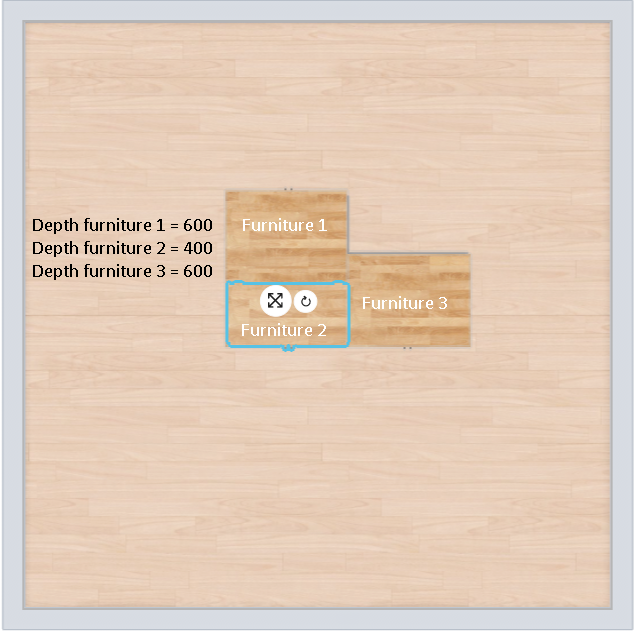
In this example, the context parameters are set as:
Furniture 1:
{
    isBackToBack: true,
    backToBackSidesLength: 1000,
    backToBackSidesVisible: "right"
}
Furniture 2:
{
    isBackToBack: true,
    backToBackSidesLength: 1000,
    backToBackSidesVisible: "left"
}
Furniture 3:
{
    isBackToBack: false,
    backToBackSidesLength: 600,
    backToBackSidesVisible: "none"
}
Linear context
We set the following context parameters on cabinets that contribute to linears. Cabinets only receive the linear context parameters corresponding to their linears.
For example, a cabinet with a worktop and a plinth is only applied the context parameters worktop and plinth. It does not even have the 4 other linear context parameters.
| Parameter Name | Parameter Type | Function |
|---|---|---|
worktop | product | the ID of the worktop, if it has one. Can be null in the case of a deleted worktop. |
plinth | product | the ID of the plinth, if it has one. |
cornice | product | the ID of the cornice, if it has one. |
decostrip | product | the ID of the deco-strip, if it has one. |
wallpanel | product | the ID of the wall-panel, if it has one. |
walledgestrip | product | the ID of the wall-edge-strip, if it has one. |