Kitchen Specialists - Features
Introduction
The Kitchen Specialists offer enables more advanced features in order to allow the kitchen designers to efficiently create projects tailored to their clients' specific needs.
This section provides more details on the advanced features available exclusively through the Kitchen Specialists subscription.
Technical view - 2D Design
Designing a kitchen project in 2D is essential for kitchen designers. It allows for a better representation of the available space based on measurements and makes it easier to identify the types of products present in the scene.
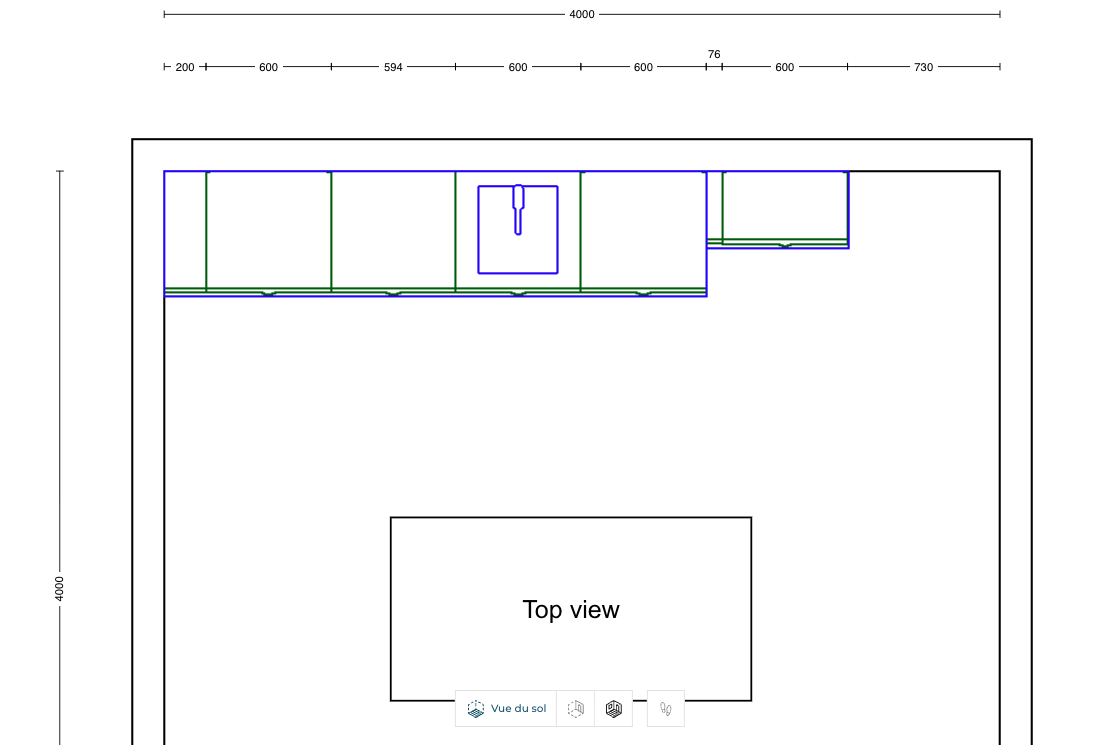
We have different line of cotations in this view. We can see the dimensions of the room at the top and the dimensions of each product in the second line. If there is some space available between cabinets or at the end of the linear and the wall, we are displaying the dimension of the remaining space.
There is also a possibility to display the color of the products and the coverings of the room by enabling the option "Display colour" through the View mode options menu.

In this same menu, you can manage the different layers to provide a dedicated view depending on the product type.
In the example below, the user has chosen to keep only the visible worktops of their project. The "Worktops" checkbox is the only one selected; the others are deactivated.
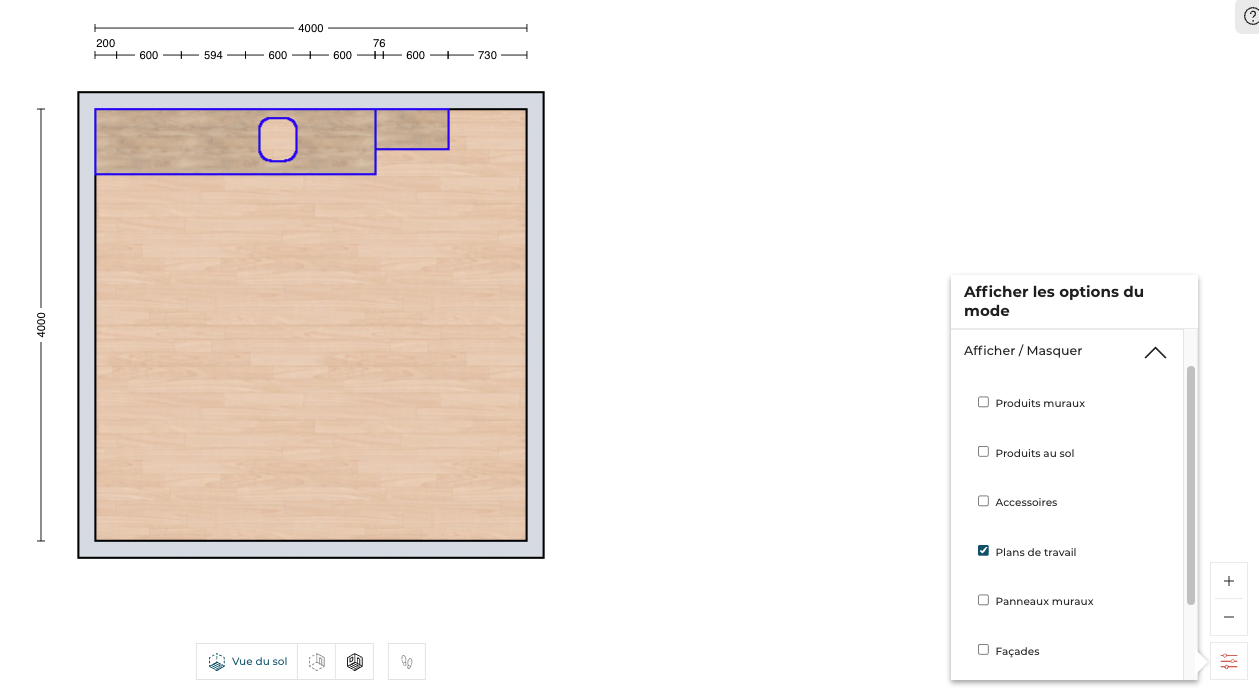
We also offer the possibility to the retailers to customize the colors of the borders for every type of products. In the example below, the retailer decide to configure the green value for the borders of the worktops. At the same time, the blue color has been chosen for the base units.

📌 The color customization can be configured through the dedicated application distribution settings. See the dedicated section for more details.
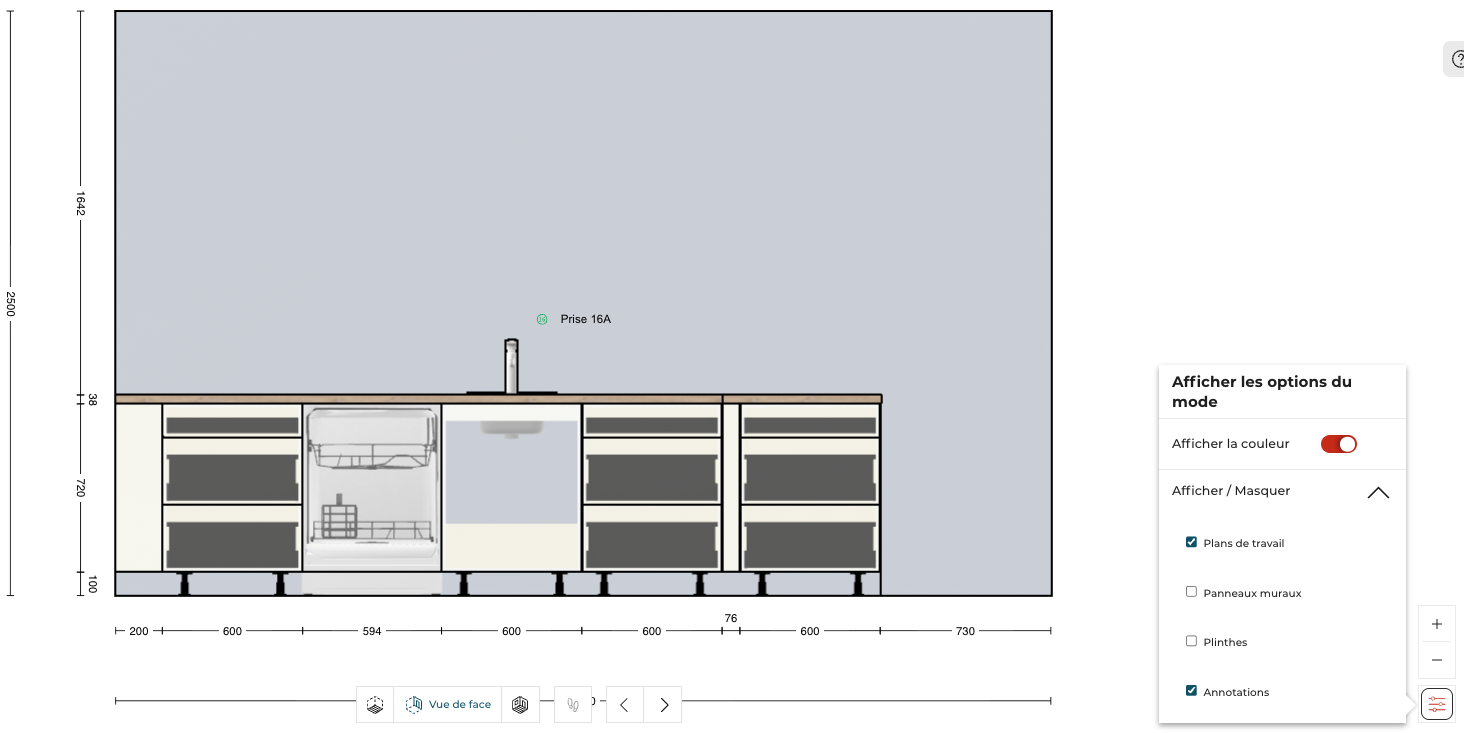
In Front Elevation view, the same layer management has been activated, the kitchen design can display or not any type of the products in order to do specific views for the client. In the example below, the kitchen designer decided to remove the display of the plinths.
Productivity
Improving the productivity of the Kitchen designers is essential to transform the customer's projects to real sells. To achieve this efficiency, several shortcuts have been added in the Kitchen application.
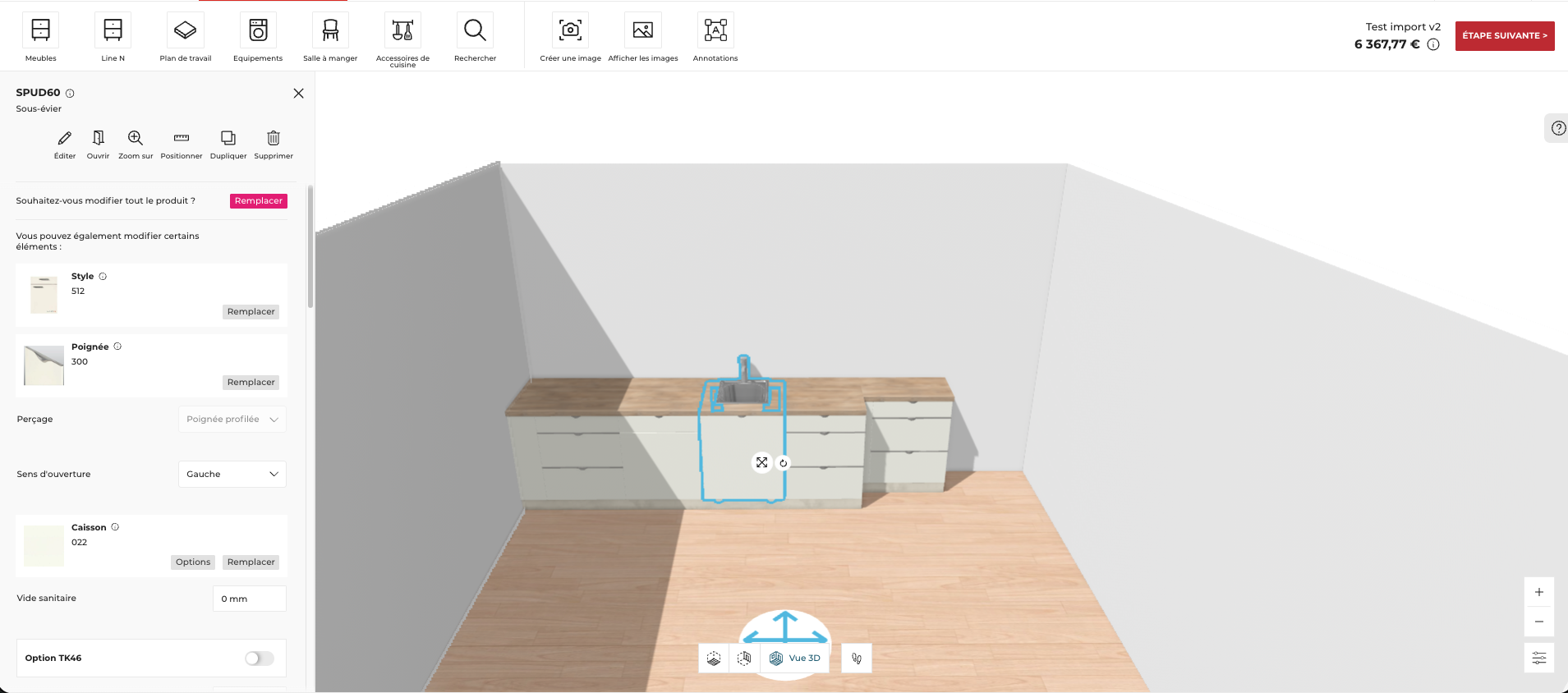
Edit panel direct access
To avoid multiple clicks and reduce the time to configure the products in the project, the Kitchen designer can access directly to the edit panel when the product is selected. The Kitchen designer has then all the information related to the configuration of the selected products.
Shortcuts
Advanced annotations
Kitchen designers can add annotations in the 2D view, the Front Elevation view and in the installation plan editor. We are proposing standard annotations like adding arrows, text boxes, images, symbols (technical elements) and dimensions.
To do so, the user needs to go into the views mentioned above and click the  icon present in the top bar. The options to add the annotations are displayed, as shown below:
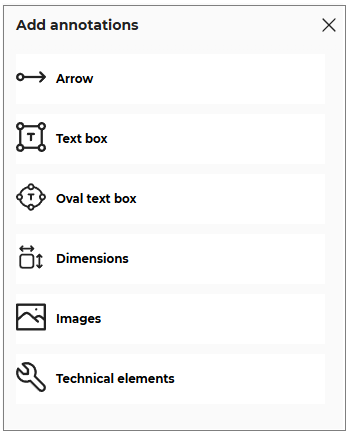
We are proposing an advanced feature for dimension annotation. The user can add any dimension by clicking on the concerned item and draw the dimension in the scene. There are several options for the edition of the dimensions. We added the possibility to override this dimension value as follows:
- Toggle OFF the Real distance option to enable the real distance option, as shown below:

- Select and modify the displayed value of the distance, as shown below:

- Click the Enter key or click outside the input box to save the modified distance.