Editing Leg

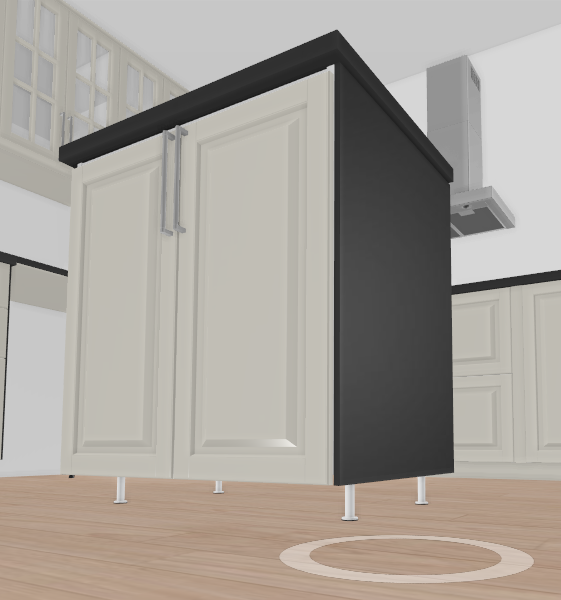
In the kitchen planner, all the cabinets that are placed on the floor have legs, even decorative, even with plinths. By default, each cabinet has four legs, except corner cabinets that have six legs. The leg option is editable by the customer via the Edit panel of the cabinet.
Any modification on the legs must be prepared beforehand by the Range Manager to ensure the expected behavior.
➡️ See Set Up Legs 🔗 or Set Up Legs through API 🔗 for detailed information on this preparating work.
➡️ See Define Leg Position 🔗 for detailed information on how to place legs on a cabinet.
➡️ The activation and position of legs can be managed by a dedicated Applicative Rule named Cabinet Leg Rule 🔗.
Basic Actions and Options
The basic actions regarding legs are available by clicking the cabinet on the scene and then the Edit icon. By default, legs come with plinths: the customer can replace the legs via the plinth options. There is no other possible action on legs for the customer in the Edit panel.
Add and Position Legs
⚙️ Set up: Dimension parameters on the product, parameters of the leg assembly
❗️ Legs are added automatically as a set of four or six legs: you cannot add more legs. But there can be less legs than the predefined default number, dependind on leg sharing options and the leg applicative rule.
Advanced Options
All the actions on legs are managed by parameters defined on the cabinet, by parameters defined on the leg assembly and by rules (see the links to the corresponding pages above).
Merging Legs
⚙️ Set up: 'leftLegOption' and 'rightLegOption' on the cabinet - Cabinet Leg Rule 🔗
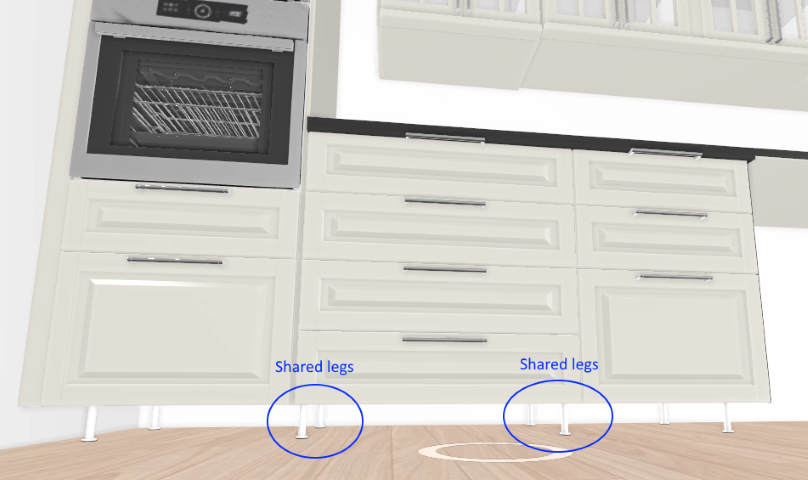
If two cabinets are adjacent, that is to say are in contact with each other and aligned (front or back alignment) The applicative rule will automatically merge the front legs in the middle of the cabinets. On a BMA point of view, this merge is managed by the deactivation of the leg on the right of the cabinet (for cabinet on the left) and the move of the leg on the left of the cabinet (for cabinet on the right). This behavior is still valid in case of more than two cabinets in the linear and for all cabinet types (including those with appliances).
Removing leg
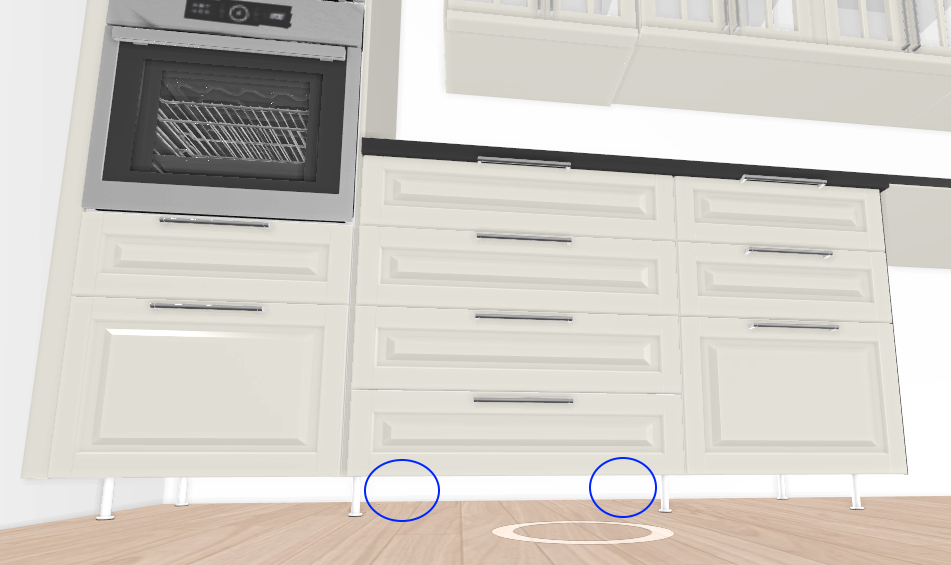
Likewise, the applicative rule can automatically remove the back leg in the middle of the cabinets. On a BMA point of view, this is managed by the deactivation of the two legs on the same time for both cabinets.
📌 For corner cabinet only, it is not mandatory to have two adjacent cabinets to remove a leg. In this case the condition is the activation of a suspension rail, else the legs cannot be removed.
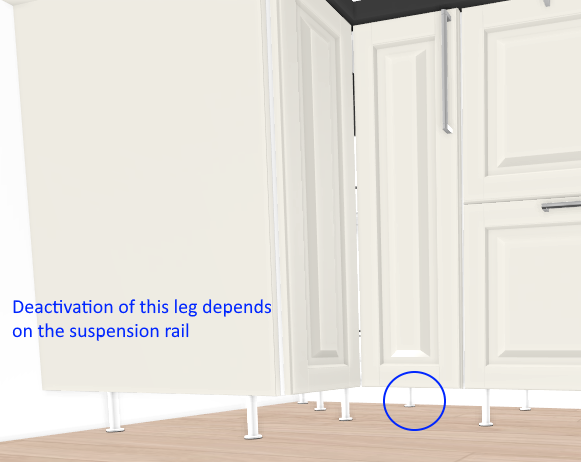
❗️ Some cabinets with appliances are not allowed to remove or share a leg with another cabinet. These are:
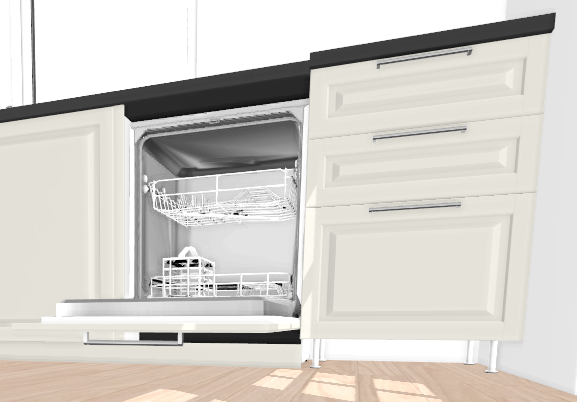
▪️ Free standing appliances or integrated free standing appliances having their own legs
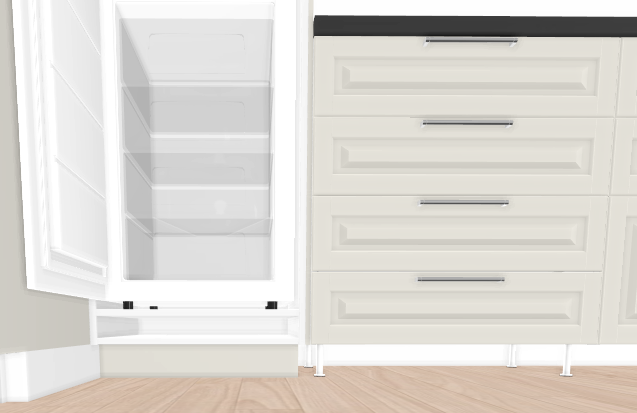
▪️ High cabinet with integrated fridge requiring four dedicated legs.
Example with integrated dishwasher having its own legs/plinths:
Example with an integrated fridge:
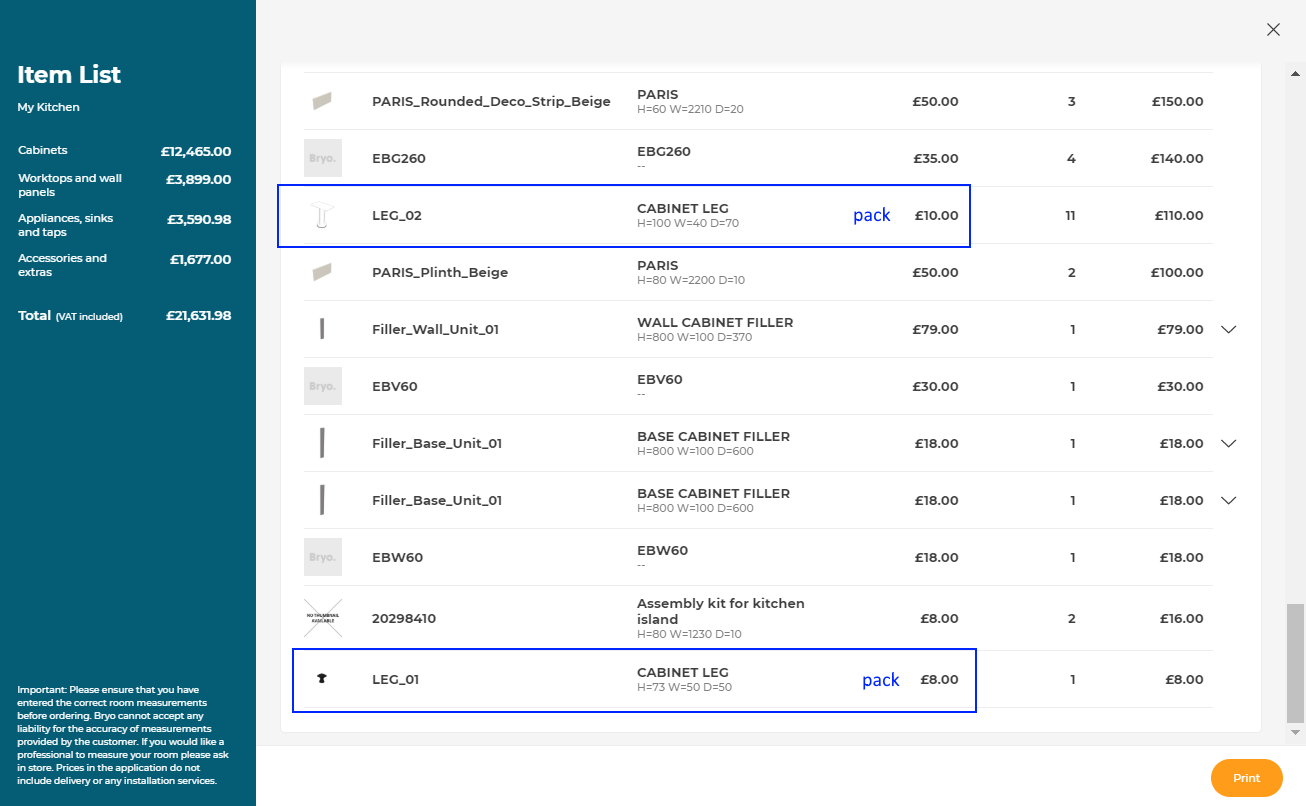
Possible Result in the Item List
Like all the illustrations in this page, this is a BRYO sample
Depending on the customer's choices all the products are priced separately and visible in the item list. The pricing of legs is based on "packAmount" method 🔗