Pick a Layout
This is the second step in the application. It provides proposed layouts(templates) of the kitchen from the selected preferences of the user.
User can either select one of the layouts, or move to step 3 - Design your kitchen to design a kitchen of own.
⚙️ Set up: Application distribution parameter proposalStep 🔗
The Pick a Layout step is not available in the application when theproposalStepis set tofalse.
Selecting a Layout
⚙️ Set up: Application distribution parameter needMapping 🔗.
- If the value of
needMappingis set to false in thewidgets, then the user supplied need mapping widget is displayed.- If the value of
needMappingis set to true in thewidgets, then the default need mapping widget is used.
Multiple layouts are available for user according to the user preferences.
User can select one of the layouts and click Next Step to design the kitchen with the selected layout.
To design a kitchen of own, click step 3 - Design your kitchen to start from scratch.
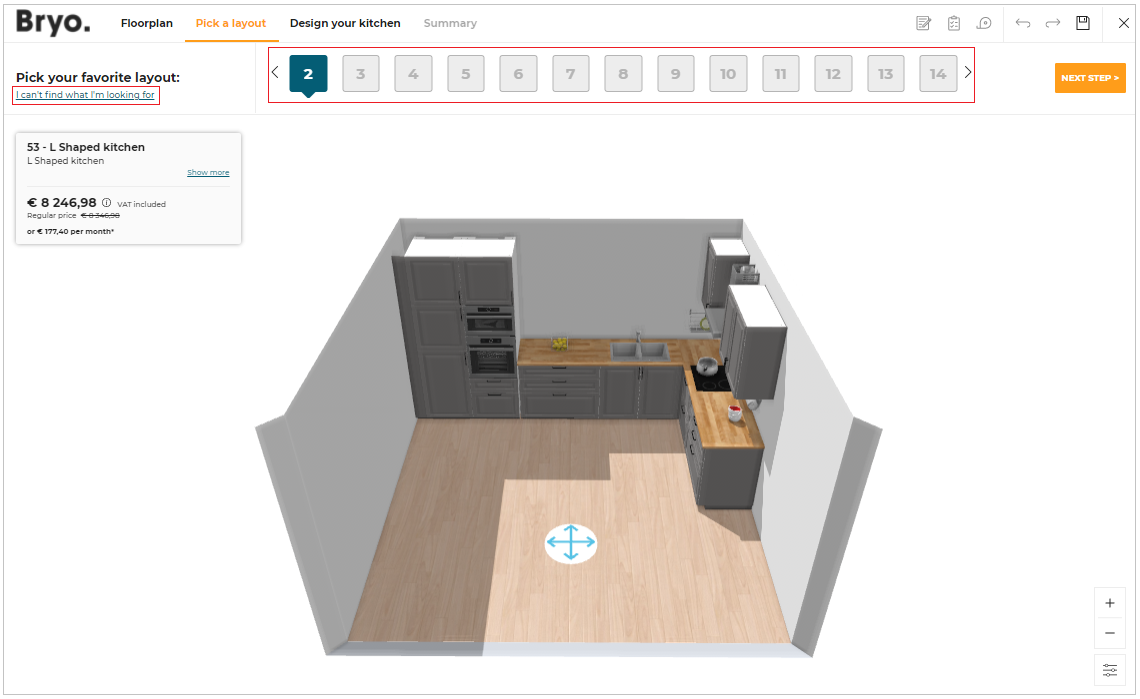
To change the preferences selected, click I can't find what I'm looking for.
A pop-up appears, as shown below.
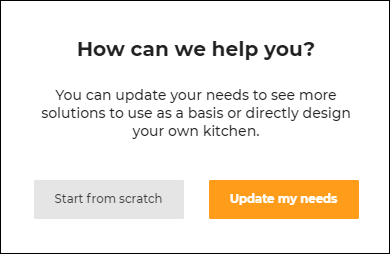
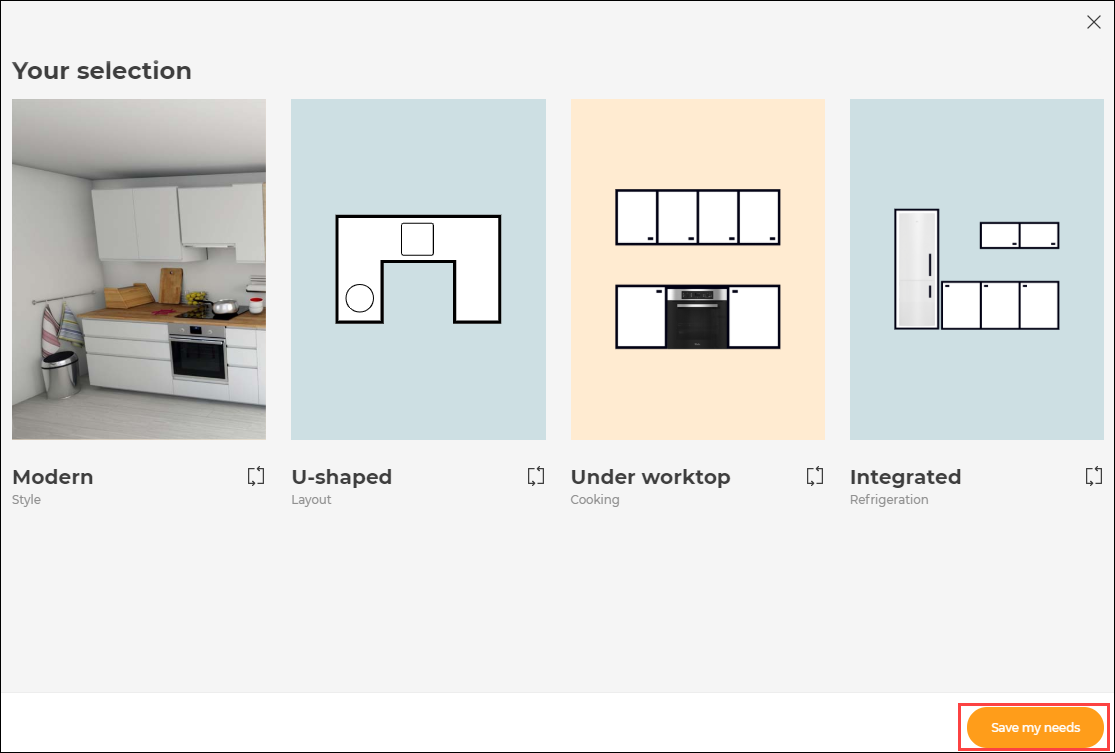
Click Update my needs to change the preferences, and click Save my needs, as shown below.
To design a kitchen of own, click Start from scratch.
Layout Information
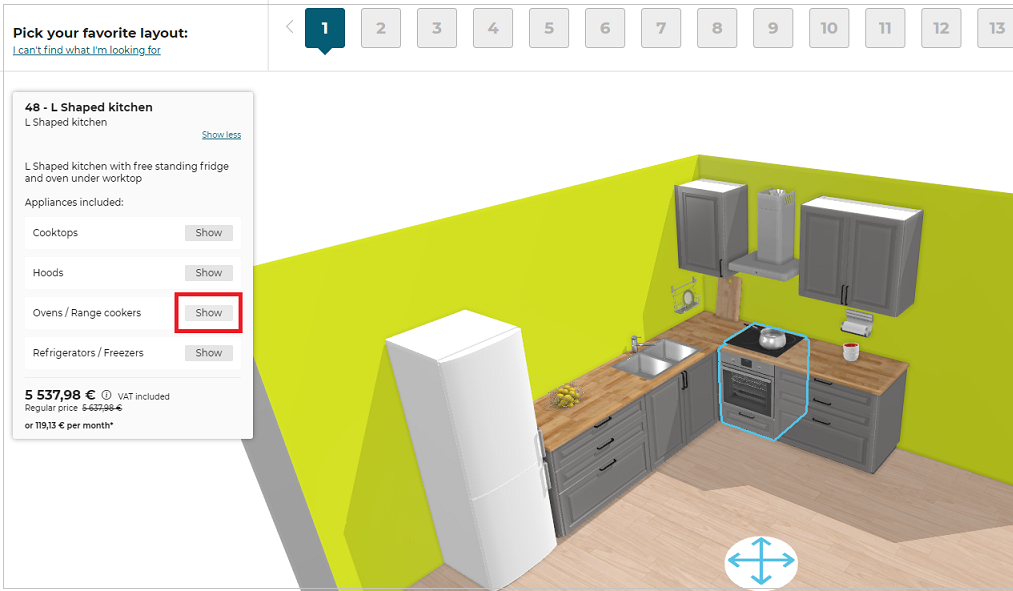
After selecting a layout from proposed kitchen templates, the information such as its name, pricing, etc. is displayed on the screen.
Click Show more to display description and list of appliances included in the layout.
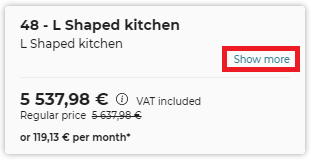
Clicking Show will highlight the respective appliance in the view and rotate the view to show it at the center of the screen.
Note that the list of appliances can be hidden with the applianceInTemplate application setting.
Pricing of a Layout
⚙️ Set up: Pricing Types 🔗
- Click
 for pricing information.
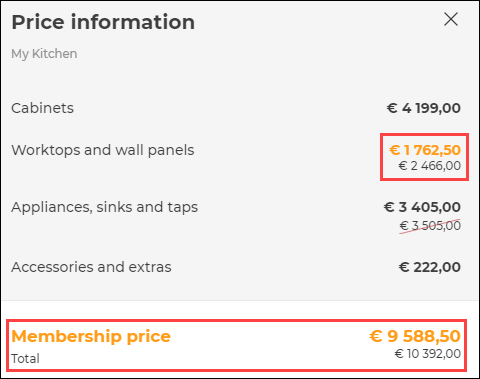
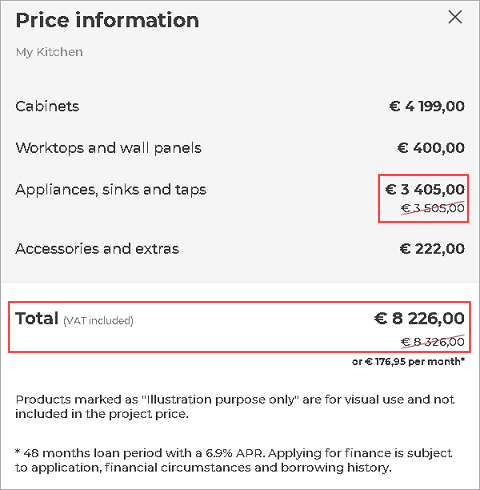
Pricing information of the layout is displayed, as shown below.
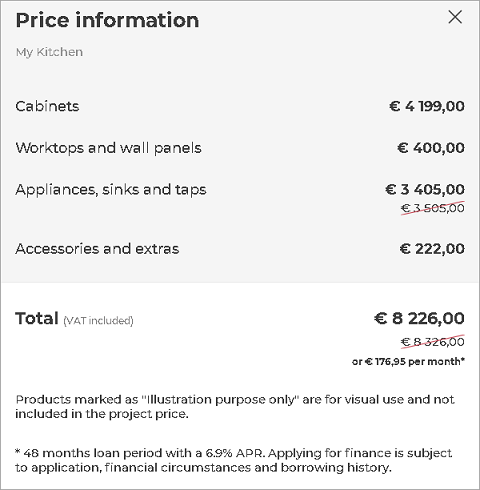
Calculated monthly loan amount will be displayed below the total amount of the kitchen. Monthly amount will be calculated according to the settings in Monthly payment > See details about finance section in step 4 - summary.
Refer Project Price for more information.
Pricing can be any of these or combination of these types:
- Regular Price
- Member / Membership Price
- Reduced Price
Points to note:
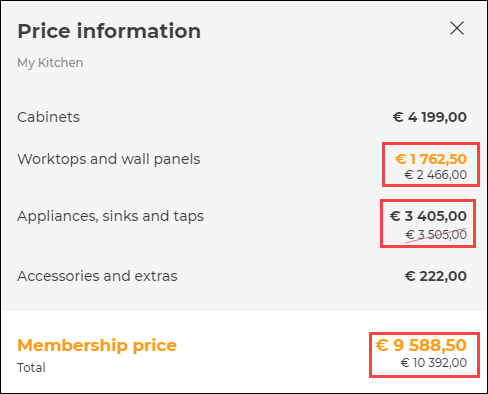
- Discount price can be either Member price or Reduced price, or both.
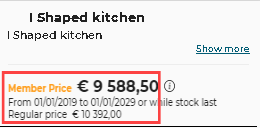
- When member price product as well as reduced price product is included in the layout, the price displayed will be the lowest minimum price out of the two prices, along with regular price.
- Value Added Tax(VAT) price is included in all the prices, i.e. step 2 - layout's price, step 3 - project price and step 4 - final price.
Regular Price
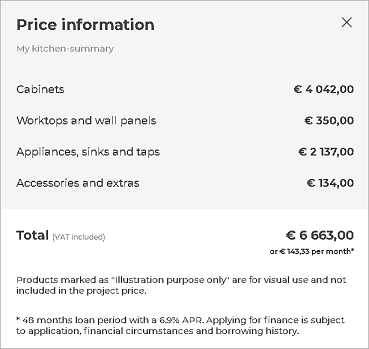
When none of the products are in discount, regular price is displayed.
It is the price of the products without any discount.
It is displayed as shown below:

Member / Membership Price
Some products have member price associated with them for the registered members, as shown below.
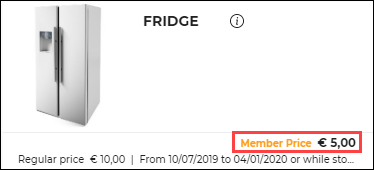
When any of the member price product is included in the layout, layout displays member price as well as regular price of the layout, as shown below:
Discounted Price
Some products have discounted price associated with them for discount, as shown below.

When any of the discounted price product is included in the layout, layout displays discounted price with Price Dropped label of the layout as shown above
Reduced Price
Some products have reduced price associated with them for discount, as shown below.
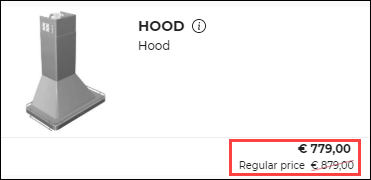
When any of the reduced price product is included in the layout, layout displays reduced price as well as regular price of the layout as shown below:

Availability of a Layout
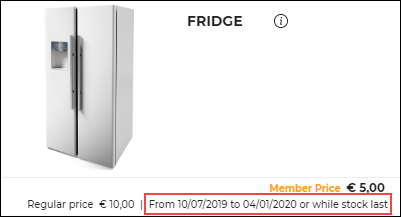
Products with discount have an availability date(start date and end date) for the discount, as shown below.
When a product or multiple products with discount is in the layout, the availability of the layout with the discount price is displayed, as shown below.
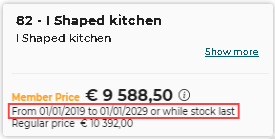
Start date: It is the date when the product is available for the user in the discount price.
In a layout, when multiple products have different start date, the earliest start date out of all products is considered and displayed.
End date: It is the date when the product will be non-available for the user in the discount price.
In a layout, when multiple products have different end date, the earliest end date out of all products is considered and displayed.