Apply to Kitchen

Intro
⚠️ Apply to all: There are two ways to apply a value to all products depending on the type of the parameter.
- All types of parameters except product
This applicative rule does not apply to product parameters that are not type 7 (like string, length, etc.). For those parameters, an apply to all button is available directly next to the parameter in the edit panel. This button applies the new value to all compatible products : products where the parameter exists and is editable.
- Product type (type 7)
If the parameter is a product (type 7 🔗), values are applied using the following applicative rule.
ApplyKitchenRule
Manages the feature of applying a new value to a product parameter, with potential impacts on other parameters.
❗️ This rule is a more advanced version of the ApplyAllRule 🔗 and is designed to replace it. Do not use both rules at the same time.
Notification level: Not applicable
| Key | Value |
|---|---|
| ID | ApplyKitchenRule |
| Translation key | Not applicable |
Behavior
When users apply a new value to a product parameter in the planner, they may be presented with several options (depending on if there are multiple products in the project for example). When several options are available, the UI displays 2 propositions:
- Apply : only applies the change on the selected product
- Apply to All : applies the change to all the products and can potentially impacts other parameters as well. The system retrieves the freetags associated with the selected value. It then filters the list of products, retaining only those whose possible values for the parameter include a value with at least one matching freetag. The new value is applied to the filtered list of products.
⚠️ Entry point for "add" parameters: For parameters that can be added to the product via "add" button, the options apply/apply all are only available if the product allows different values for that parameter. In that case, a selection panel opens with all the possible values. The apply/apply all options are displayed in an overlay when clicking on the value to apply. If only one value is allowed for this product parameter, that value is applied automatically and apply options are not available (no entry point for this rule).
Trigger Conditions
The rules is triggered on clicking the Apply to all button to modify a parameter value on a product.
Overload Parameters
| Key name | Type | Default value | Description |
|---|---|---|---|
| Can be anything | string | – | Mandatory The key is a name for the rule, like "rule01" for example. The value is an object that contains parameter names composed themselves by an array of arrays (representing possible values). The possible values can contain null or be an empty array. |
handleEmptyArrays | boolean | false | Optional Controls if the planner should display a user pop-in when encountering an empty array in the rule resolution. |
Overload sample
The below overload example contains two rules:
- rule01 defines the mapping between the parameter
frontand the parameterdrawerFront. - ruleForBox defines similarities between different values of the parameter
box.
{
	"rule01": {
		"front": [
			["13855", "13902"],
			["13699", "16059"],
			["15758"],
			["14119"]
		],
		"drawerFront": [
			["13700"],
			["15514"],
			["15762"],
			["14125"]
		]
	},
	"ruleForBox": {
		"box": [
			[ "black_box_wall", "black_box_base", "black_box_high" ],
			[ "white_box_wall", "white_box_base", "white_box_high" ],
			[ "red_box_wall", "red_box_base", "red_box_high" ]
		]
	}
}
Some principles
In a more general way, you are able to add as many rules as wished following the principles below.
| Number | Principle | Description |
|---|---|---|
| 1 | Name | Each rule has a name, such as "rule01" and this name will not interfere in the management of the rule. |
| 2 | Array of arrays | Each rule is an object with as many parameters as needed as keys. These parameters are made of an array of arrays of possible values (see above the complete sample). |
| 3 | Type 7 | The parameters can be any type 7, product 🔗 parameter exposed at the top-assembly level. Linears are also supported. The exhaustive list is (/!\ all lowercase) : worktop, plinth, wallpanel, walledgestrip, cornice, decostrip. However, linears are only supported as impacts of a product parameter. in other words, when a user changes a linear in the project, the ApplyKitchenRule is not triggered. |
| 4 | Possible values | The possible values are defined in an array. They must correspond to product IDs and can contain the value null. Empty arrays are allowed. |
| 5 | Array lengths | Inside a rule, the arrays of each parameters must all have the same length. But sub-arrays (possible values list) may be of any length. |
Rule algorithm
General
When selecting the option Apply to All, the ApplyKitchenRule is run and follows these steps:
- it identifies the first array containing the targeted value in each overload rule
- then it gathers all the arrays located at the same position for the other parameters of the rule
- then it retrieves the freetags associated with the selected value.
- then filters the list of products, retaining only those whose possible values for the parameter include a value with at least one matching freetag.
- lastly it applies these values in the user project to the filtered list of products.
Exception for null impacts
Let's take the following example:
{
	"rule01": {
		"foo": [
			["value_foo"]
		],
		"bar": [
			["value_bar"]
		]
	}
}
If the current value for parameter bar is null and if the user applies the value value_foo on parameter foo, then the parameter bar will not be changed to value value_bar as it should. This is because its current value is null.
Having this exception allows to link all types of cover panels for example (top, bottom, left, right), and avoid non-existing cover-panels appearing on cabinets when the user changes one of them.
Warning pop-in
When the rule is triggered, if the resulting values cannot be applied to at least one parameter of one cabinet, a warning pop-in is displayed to the user.
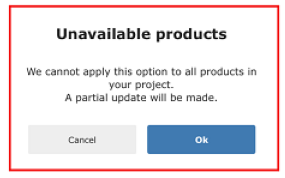
For example, if the ApplyKitchenRule result is to apply values ["val1", "val2"] on the parameter foo, but there is 1 cabinet that has neither of these values as possible values, then the pop-in is displayed. Validating the pop-in will result in this cabinet not being modified, despite having the parameter.
This pop-in is also displayed if the ApplyKitchenRule has to apply an empty array as possible values for a parameter.
However, this second scenario can be valid for some customers so the overload handleEmptyArrays can be used to not display the warning pop-in when encountering empty arrays.
📌 The simple Apply entrypoint will never generate the pop-in.
Use cases
The ApplyKitchenRule is used to answer 2 major use cases:
- Regroup different values of the same parameter : for example a blue front ID that is only for base cabinets and a blue front ID that is only for wall cabinets.
- Regroup different parameters that are semantically identical: for example parameters drawerFront, front, dishwasherFront, blindFront, glassFront, etc.
Case 1 - different values of the same parameter
In the overloads, the possible values are defined in an array and it is possible to put several values in it.
In this example, the need is to manage the color of cabinet boxes with the ApplyKitchenRule. The applicative rule defines the following array for the box:
{
	"ruleForBox": {
		"box": [
			[ "black_box_wall", "black_box_base", "black_box_high" ],
			[ "white_box_wall", "white_box_base", "white_box_high" ],
			[ "red_box_wall", "red_box_base", "red_box_high" ]
		]
	}
}
In the planner, if the user selects black_box_wall for the box of a wall cabinet and clicks the Apply to All button, the rule tries to apply each value of this array to every cabinet that has the parameter "box" and the first match with possible values of the furniture is applied.
In our example, base cabinets in the room receive the value black_box_base as it is the first matching value for them. And high cabinets are applied black_box_high.
Case 2 - different parameters that are semantically identical
In the overloads, rules can contain several different parameters.
If several parameters are present in a rule, the Apply to All entrypoint will change the value of all of them. Let's take this example:
{
	"rule01": {
		"front": [
			["13855", "13902"],
			["13699", "16059"],
			["15758"],
			["14119"]
		],
		"drawerFront": [
			["13700"],
			["15514"],
			["15762"],
			["14125"]
		]
	}
}
If a user selects the front "13699", here are the steps followed by the rule:
- it identifies the first matching array : in this example, the first occurence of the value "13699" is in the second array.
- then it gathers all the arrays located at the same position for all parameters. Here:
- ["13699", "16059"] for
front - ["15514"] for
drawerFront
- ["13699", "16059"] for
- lastly it applies these values on every product in the user project. Similarly to case 1, the value "13699" is tried first, and "16059" is applied as a fallback for the fronts.
Particular case examples
Example 1 - Possible values contain null
In this example, if a user selects the rightCoverPanel "15488", the backCoverPanel will be instantiated as null (null has to be a valid value for this parameter on all the cabinets). Therefore, the existing backCoverPanel will be removed.
{
	"rule03": {
		"rightCoverPanel": [
			["13857"],
			["15528"],
			["16053"],
			["15488"]
		],
		"backCoverPanel": [
			["13890"],
			["15527"],
			["16055"],
			[null]
		]
	}
}
Example 2 - Possible values are empty
In this third example, if a user selects the rightCoverPanel "13857", nothing will be changed for the backCoverPanel because the corresponding value is empty. Therefore, the backCoverPanel will remain in its previous state. A pop-in will be displayed in this situation to alert the user before doing the apply, and this pop-in is controllable via the overload handleEmptyArrays.
{
	"rule03": {
		"rightCoverPanel": [
			["13857"],
			["15528"],
			["16053"],
			["15488"]
		],
		"backCoverPanel": [
			[],
			["15527"],
			["16055"],
			[null]
		]
	}
}
Example 3 - Same parameter present in several rules
⚠️ Placing the same parameter in several rules is not recommended as it will likely not work as you expect.
If a parameter is present in more than one rule, and the user clicks the Apply to All button from this parameter, the system parses all applicable rules one by one, overwriting the already met parameters as it goes.
In this example, front is present in 2 rules:
{
	"rule01": {
		"front": [
			["13855", "13902"],
			["13699", "16059"],
			["15758"],
			["14119"]
		],
		"drawerFront": [
			["13700"],
			["15514"],
			["15762"],
			["14125"]
		]
	},
	"rule02": {
		"box": [
			["box1"],
			["box2"],
			["box3"],
			["box4"]
		],
		"front": [
			["13855"],
			["13699"],
			["15758"],
			["14119"]
		]
	}
}
If the user selects the front "13699", the following will happen:
- parsing rule01, it finds it in the second array so it applies:
- front : ["13699", "16059"]
- drawerFront : ["15514"]
- then parsing rule02, it also finds it in the second array so it applies:
- box : ["box2"]
- front : ["13699"]
- finally the applied parameters with the corresponding values are :
- front : ["13699"] (overwritten by rule02)
- drawerFront : ["15514"]
- box : ["box2"]
Example 4 - ApplyAll with freetags.
Assume the selected value for the material parameter is "A", associated with the freetag "wood". The list of products includes several items with varying possible values for the material parameter. The system will then retrieve the freetag "wood" associated with "A". Filter the products, retaining only those whose possible values for material include a value with the freetag "wood". Apply "A" to the material parameter of the filtered products.
Impact on the Kitchen global style
When performing an Apply or Apply to All action, every modified value is stored in the Kitchen current global style. Then every products added to the project after that are inserted with the same style changes (if available for that particular product).
See this guide 🔗 for more information.