Using Dining
This section explains steps to add and edit dining products in the kitchen.
Adding Dining Products
- Click the
 icon, to see available filter options as shown below:

Dining catalog
- Click the type of dining product required, for its catalog to display. Here, Chairs is clicked to filter the catalog and display only chairs, as shown below:
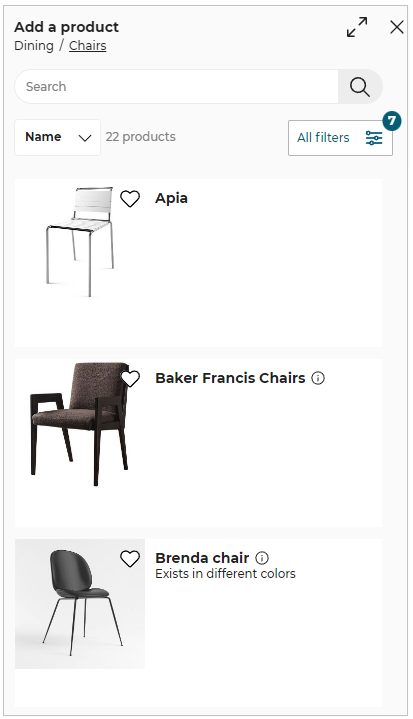
- Click product from the catalog to add it in the room.
As shown below, product is added to the kitchen.
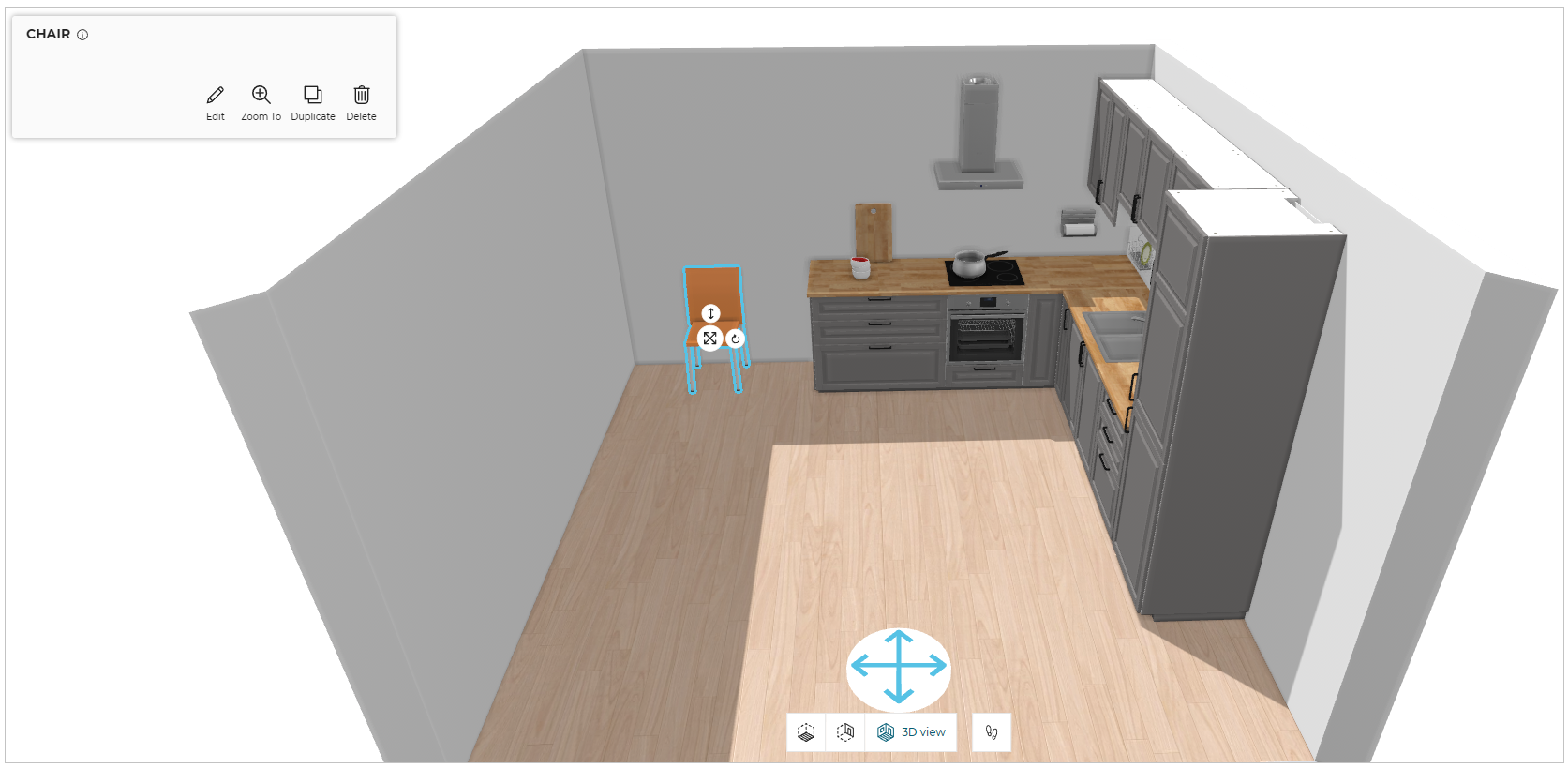
You can also add the Dining products in the room by drag and drop them from the catalog.
- Click the
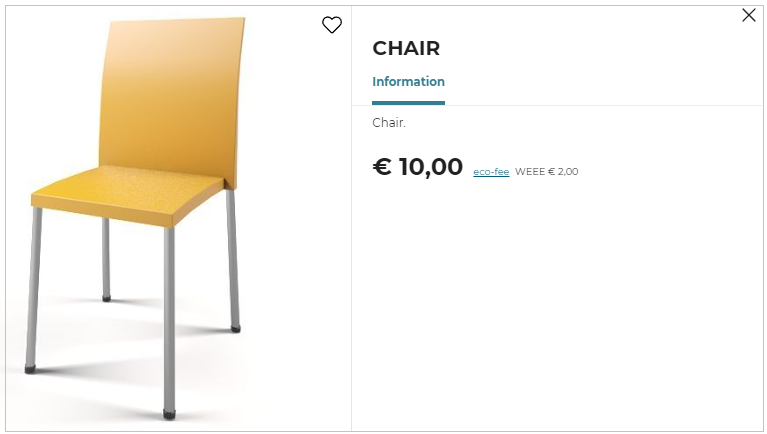
 icon, for product information.
The information panel appears as shown below:
Editing Dining Products
On selecting the dining product, the toolbar appears as shown below:

| Icon | Function | Description |
|---|---|---|
 | Edit | Lists editing options. Editing options vary with products. |
 | Zoom To | Zoom to the selected product. |
 | Duplicate | Duplicate the selected product. The orientation of the duplicate product is consistent with the existing product. |
 | Undo | Deletes the selected product. |