Kitchen Planner Overview
This section provides an overview to the user interface and the functionalities of the kitchen planner via the Bryo sample kitchen planner.
The Layout of Kitchen Planner
The components of the kitchen planner are as follows:
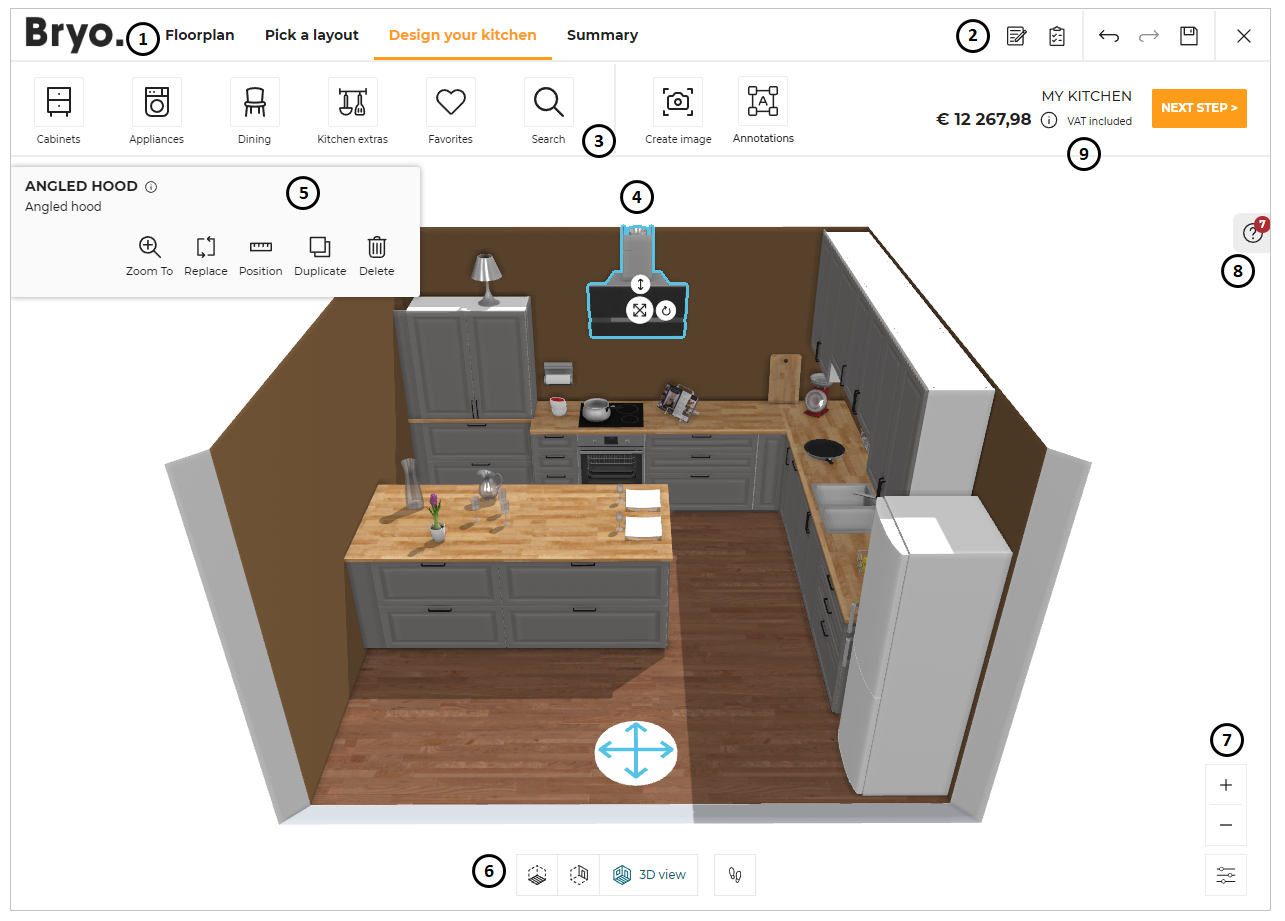
- The Kitchen Planning Steps.
- The Common toolbar.
- The Design toolbar with categories and search.
- The scene.
- The Edit panel.
- The Navigation icons.
- The Zoom icons.
- The Help Center.
- The Price area.
The Kitchen Planning Steps
This section explains the steps to design the kitchen.
Floorplan
You can draw the floor plan of your kitchen room in this step.
For more information, see Floorplan.
Pick a layout
Different automatic kitchen solutions are proposed in this step, based on details provided in previous step i.e Floorplan. You can either choose one of the proposed solution or go to next step i.e. Design your kitchen directly.
For more information, see Pick a layout.
Design your Kitchen
You can design the kitchen or customize it after selecting one of the kitchen solution proposed in Pick a layout, by adding or editing furniture.
For more information, see Design your kitchen.
When entering for the first time in the Design your kitchen step, the popup message Discover design guidelines appears near Help Center, as shown below:

If your design has issues, then the number of errors is displayed as shown below:

Summary
It is the final summary of the kitchen after modifying it according to the user requirements. You can print media, export projects, and share the project link in this step.
For more information, see Summary.
Navigate Kitchen Planning Steps
You can switch the planning steps by selecting the tabs from the top bar.
The Common Toolbar
Following commands are available in this section:
| Icon | Function | Description |
|---|---|---|
 | Notes | To add either project notes and/or item notes. |
 | Item List | To display the list of products added to the project. |
 | Measurement Tools | To measure the distance between two points/ surfaces. |
 | Undo | To undo the last operation. |
 | Redo | To redo the last undone operation. |
 | Save | To save the project. |
 | Close | To close the application. |
❗️ From 980px to 1200px (screen resolution), the location of the buttons "View images" and "Annotations" is changed to have the needed space to display every feature. In this case, these buttons are moved to the top bar as shown in the image below. For the resolution superior to 1200px, these buttons are placed in the initial position.

Measurement tool
⚙️ Set up: Application distribution parameter measureTool 🔗.
The Measure tool option is available in the application, when the value ofmeasureToolis set totrue. The default value of the parameters is set to false.
Item List
⚙️ Set up: Application distribution parameter itemList 🔗.
The Item List option is not available in the application, when the value ofitemListis set tofalse. The default value of the parameters is set as true.
The Available Shortcuts
Several shortcuts are allowed in the planner to do some actions, the list is described below:
| Shortcut (Windows) | Shortcut (Mac) | Description |
|---|---|---|
| Ctrl + A | Cmd + A | Select all the products in the project |
| Ctrl + C | Cmd + C | Copy the current selection |
| Ctrl + V | Cmd + V | Paste the current selection |
| Ctrl + D | Cmd + D | Duplicate the current selection |
| Ctrl + F | Cmd + F | Open the global search |
| Ctrl + S | Cmd + S | Save the current project |
| Ctrl + Z | Cmd + Z | Undo the last action in the planner |
| Ctrl + Shift + Z | Cmd + Shift + Z | Redo the last action in the planner |
| Delete | Delete | Delete the current selection |
| Enter | Enter | Enter the current selection |
| Esc | Esc | Escape the current selection |
| Alt + ↑ | Alt + ↑ | Move up the avatar (virtual visit) |
| Alt + ↓ | Alt + ↓ | Move down the avatar (virtual visit) |
| Shift + → | Shift + → | Rotate right the avatar (virtual visit) |
| Shift + ← | Shift + ← | Rotate left the avatar (virtual visit) |
| Shift + ↑ | Shift + ↑ | Rotate high the avatar (virtual visit) |
| Shift + ↓ | Shift + ↓ | Rotate low the avatar (virtual visit) |
| ← | ← | Move the avatar clockwise |
| → | → | Move the avatar counterclockwise |
| ↑ | ↑ | Move forward the avatar |
| ↓ | ↓ | Move backward the avatar |
| Alt + ↑ | Alt + ↑ | Zoom in |
| Alt + ↓ | Alt + ↓ | Zoom out |
| Shift + → | Shift + → | Rotate right the avatar |
| Shift + ← | Shift + ← | Rotate left the avatar |
| Shift + ↑ | Shift + ↑ | Rotate high the avatar |
| Shift + ↓ | Shift + ↓ | Rotate low the avatar |
| Ctrl + Click Left | Cmd + Click Left | Multi-selection of the elements in the planner |
| Ctrl + U | Cmd + U | Change unit measure dynamically in the application |
| Ctrl + H | Cmd + H | Open the help center |
| Ctrl + F6 | Cmd + fn + F6 | Switch between 2D, 3D, and Front Elevation views |
- You can also copy/paste the products from one project to another with the copy (Ctrl+C) and paste (Ctrl+V) shortcuts except opening/bay products like door/windows.
- You can select multiple products by simultaneously pressing the Ctrl key, left click of the mouse and dragging the cursor over the desired products.
The Project Note
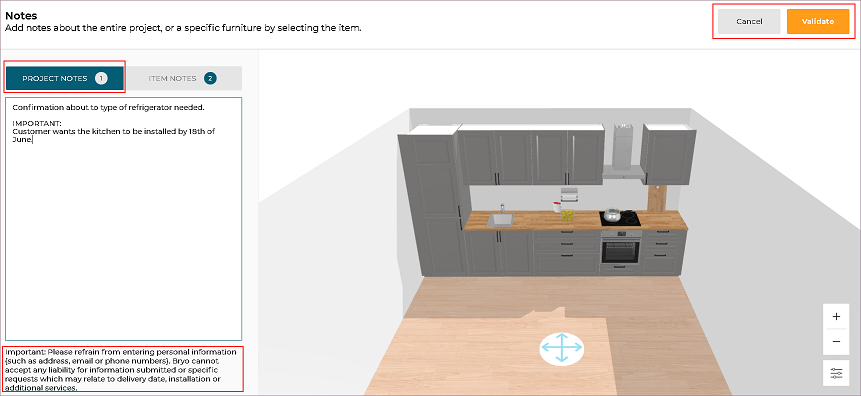
- Project Notes
The user can add the project notes to the kitchen project.
To add a project note:
Select Item Note from the common toolbar, write project note.
Click Validate to save the project notes.
A number is shown beside "Project Notes" if a note is written.
A project may only have 1 project note.
- Item Notes
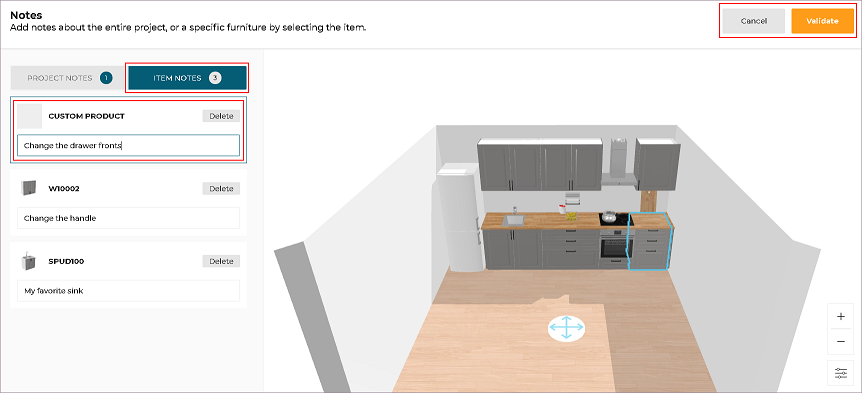
The user can add the notes to the items in the kitchen.
To add item note:
Select an item in the project, write note.
A number is shown beside "Item Notes" is the count of notes.
Click Validate to save the item notes.
A project may have multiple item notes.
- The total number of notes i.e. sum of project notes and item notes is shown in the toolbar.
- Item notes can be added to all items that are numbered in 2D plans, with the exception of linears.
- On replacing an item, deletes the item note associated with it.
- On editing a cabinet in cabinet composer, the name of the cabinet is changed to Custom Product.
- If an item note is associated with custom product, user is notified to check if the item note is still valid.
- It is recommended to add note after finalizing the item.

The Design Toolbar
This section contains commands and options to design your kitchen.
The list of commands, options varies in every step of the kitchen planner.
The Scene
On the scene, icons are displayed to help you rotate, elevate and drag the product in the room.
| Icon | Function | Description |
|---|---|---|
 | Pan | To drag and position product. |
 | Rotate | To rotate product. |
 | Elevate | To elevate product. |
Edit Panel
After selecting a product in the scene, the Edit panel is displayed to allow you make changes to it. Note: You can also open the Edit Panel directly by double-clicking on it in 3D.
The Navigation icons
The navigation icons allow you to switch from a default 3D view to a 2D or first person view.
| Icon | Function | Description |
|---|---|---|
 | 2D view | Activates the 2D view. You can edit walls, measurements, and furniture in this view. You can also view room names and their measurements. Room names are only visible and editable in step 1 - Floorplan. |
 | Front view | Activates the front view. You can visualize the front view of the kitchen. |
 | 3D view | Activates the 3D view. You can visualize a 3D view of the kitchen. |
 | First Person view | Activates the first-person view, to give the real-life experience of the kitchen. |
The Front view option is disabled in 2D view and becomes active only when switched to 3D view.
The Reset View Icon
The reset view icon allows you to re-center the project within the display area.
| Icon | Function | Description |
|---|---|---|
 | Reset View | Appears (a) When the 2D project is out of view, or (B) The avatar is outside the 3D project. |
The Zoom Icons
The zoom icons allows you to zoom in or zoom out the scene.
| Icon | Function | Description |
|---|---|---|
 | Zoom In | To zoom in the design view. |
 | Zoom Out | To zoom out the design view. |
📌 You can also use the mouse wheel to zoom in or out.
The Help Center
| Icon | Function | Description |
|---|---|---|
 | Help Center | To access the tooltips and planning tabs. A number indicates planning errors available in your design. |
Tool Tips
On launching the planner, a tooltip is provided to guide the user.
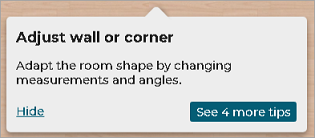
To continue reading the tips, click See 4 more tips.
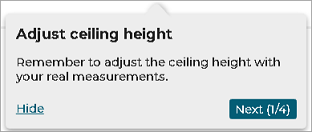
Click Next to continue reading.
When all tips are shown, only the Hide button is available.
To hide the tip, click Hide.
On clicking hide, the user is notified about accessing these tips in the help center and the help center is open briefly to inform the user about the tool tip's location.

Guided tool tips are only available when
guidedTouris set to 'true' in application distribution settings.
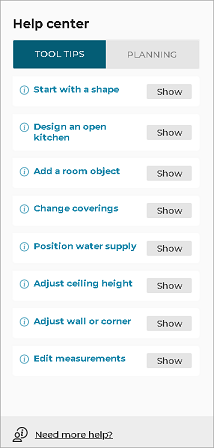
To view tool tips, go to the help center.
-
Click Help center icon to open the Help center.
A List of available tooltips is displayed in this tab. -
Click the Show to display the tooltip in the design area.
Planning
Warnings and suggestions are displayed in this tab, to help you design an error free kitchen.
When you reopen a saved project and the total price has changed, a Total price change recommendation may appear in this tab.
For more information, see Total Price Change.
Click the show in 3D of the warning, to highlight the error in the kitchen.
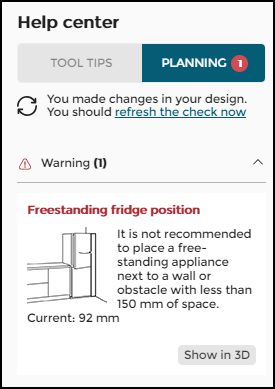
Planning warning is displayed as follows:
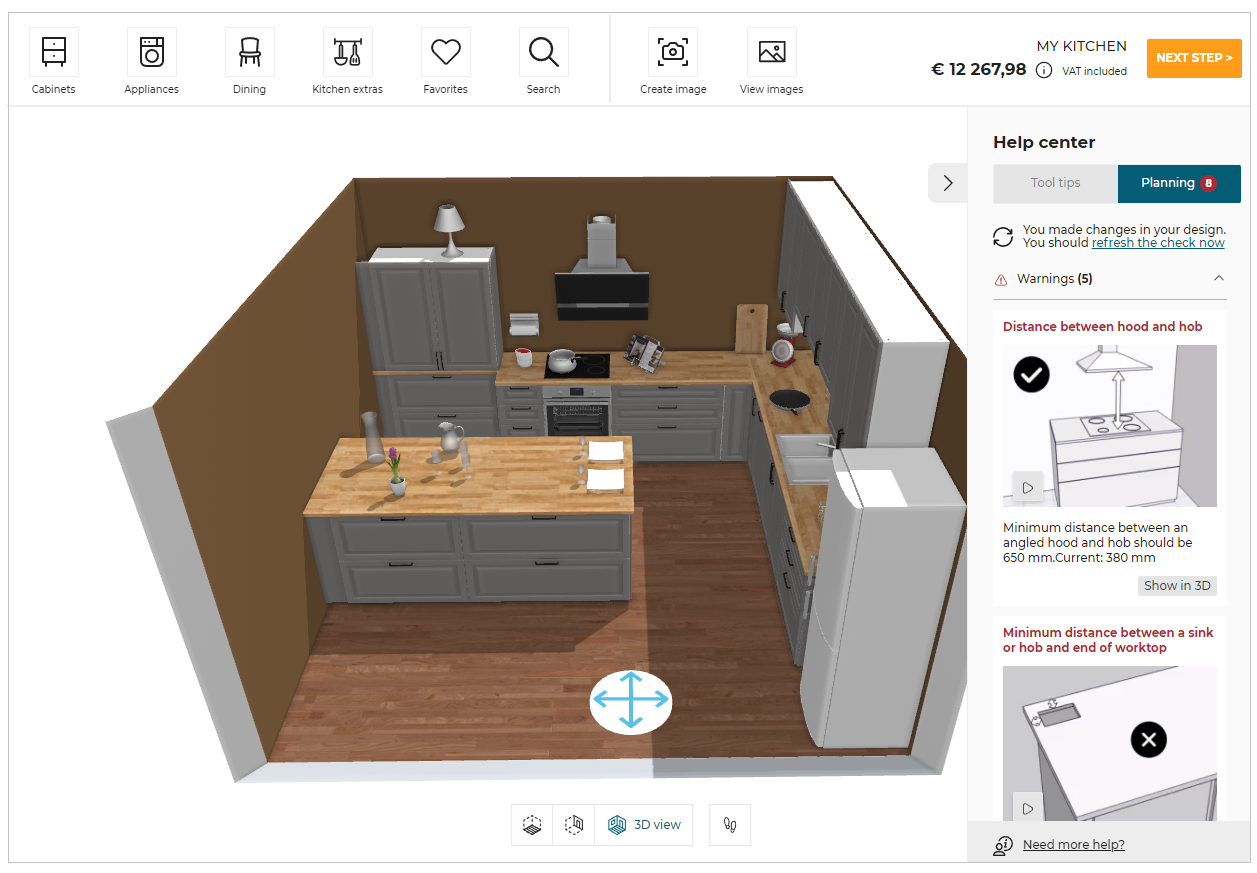
If an error mentioned in the business rule is not in the current view in the front elevation view, the notification to switch to the 3D view or the wall is displayed, as shown below:

Additional Assistance
Additional assistance is available in the help center for the floorplan step and the design your kitchen step.
Types of assistance available are call for support, launch video co-design, book an appointment, find a store, etc.
Click "Need more help?" to display the available assistances.
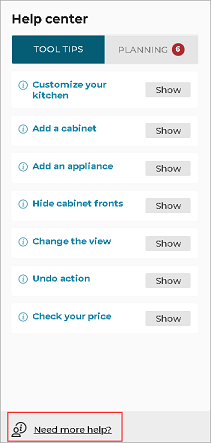
"Need more help?" in help center triggers NeedHelpClicked iframe, which displays a pop-in with the available assistances. These assistances in pop-in are added by kitchen retailers according to their requirements.
Additional assistance is only available when
additionalHelpis set 'true' in application distribution settings.
The Price Area
The price area computes in real time all the products and items added to the scene (except the kitchen extras that are not priced).
Based on the payment selection in step 4 - summary, the price in step - 3 is shown in different format.
It can be all amount at once.

It can be monthly amount as per loan period selection in monthly payment.

In addition, the Next step button corresponds to the Summary tab, and allows you to access various project options.
Project price Information
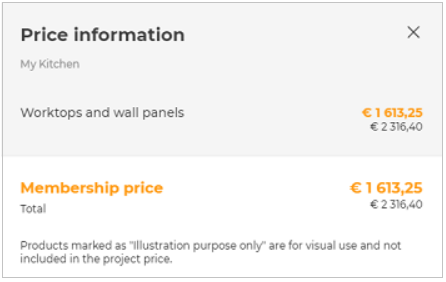
The details of total price of the kitchen is displayed in the price information pop-up.
The price information sheet generated using the Default Widget or iframe message is displayed depending on the application distribution settings.
⚙️ Set up: Application distribution parameter projectPriceInfo 🔗
- Below are the parameters set in the application distribution parameter to display the price information sheet:
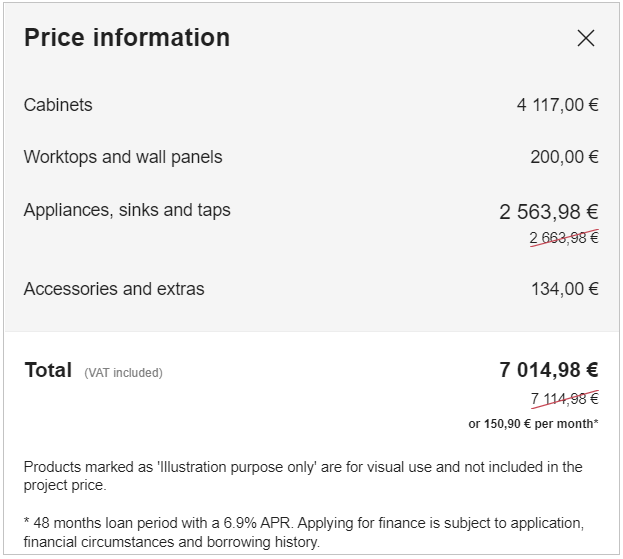
- If the value of "projectPriceInfo" in the
widgetsis set to true, then the project price information sheet generated using Default Widget is displayed, as shown below:
For more information, please refer to Price Information Widget 🔗
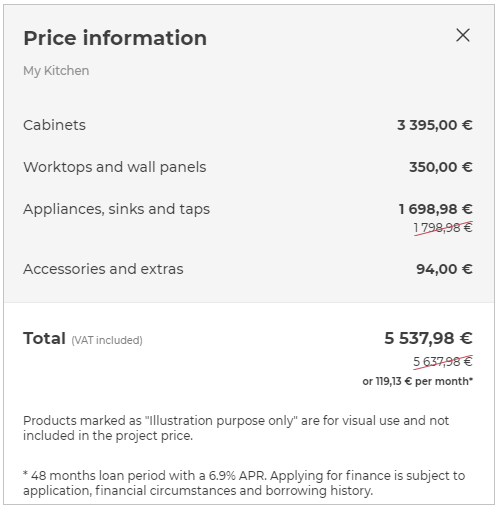
- If the value of "projectPriceInfo" in the
widgetsis set to false, then the project price information sheet generated using iframe message is displayed, as shown below:
Editor price information
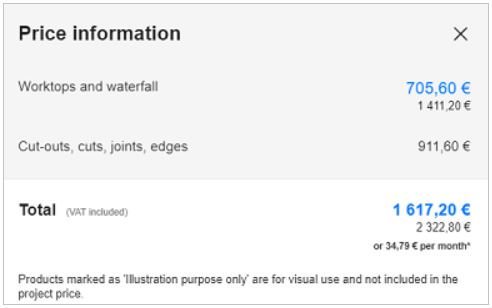
The details of the price displayed in the worktop, wall panel, wall edge strip, or product editor is displayed in the price information pop-up after click on the information icon in the respective editor.
The price information sheet generated using the Default Widget or iframe message is displayed depending on the application distribution settings.
⚙️ Set up: Application distribution parameter projectPriceInfo 🔗
- Below are the parameters set in the application distribution parameter to display the price information sheet:
- If the value of "editorPriceInfo" in the
widgetsis set to true, then the detailed price information sheet generated using Default Widget is displayed, as shown below:
For more information, please refer to Price Information Widget 🔗
- If the value of "editorPriceInfo" in the
widgetsis set to false, then the detailed price information sheet generated using iframe message is displayed, as shown below:
Opening the Existing Project
While opening the saved project, it opens the project in step-3 and zooms in to fit the kitchen in the available space of the planner.
Total Price Change
When you reopen a saved project, the application may notify you if the total price has changed since the last save.
For general information about the Help center, see The Help Center.
When the notification appears
The notification is displayed when you reopen a saved project and the current total price is different from the total price at the last save.
For more information about reopening a project, see Opening the Existing Project.
View the price change notification
- Click the icon, the Help center is displayed.
- Open the Planning tab.
- Under Recommendations, locate Total price change.
The message The total price of the project has been changed since the last project save. is displayed, as shown below:
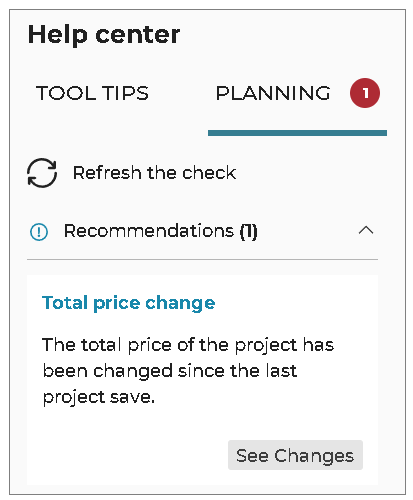
The See Changes button is displayed in the recommendation.
View impacted products
- Click the See Changes button.
- The Product Price Changes window appears, listing the impacted products with their reference, name, price, and PRICE CHANGED status, as shown below:
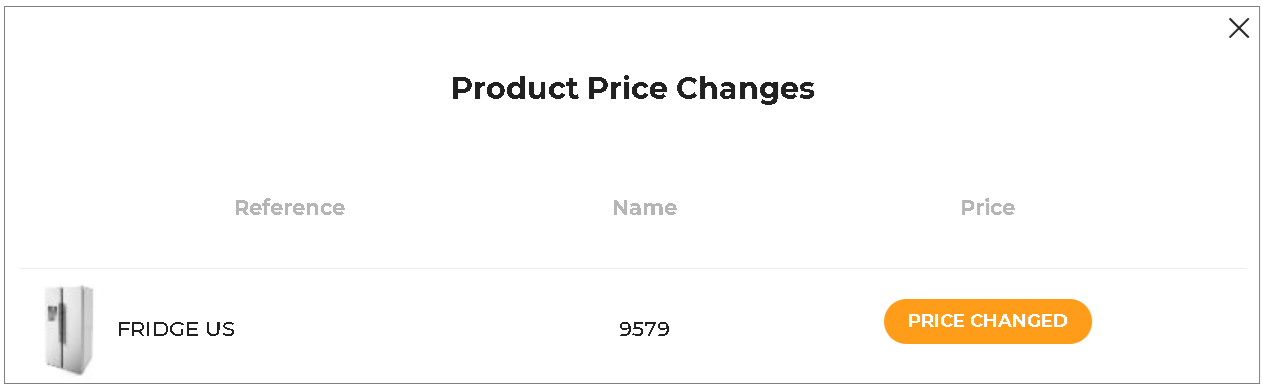
You can review which products caused the price change.
- The notification appears when the total price differs from the last save on project reopen.
- For rule and technical details, refer to BOM check rule.
- For BOM structure context, refer to Bill of Material Reference.
HomeByMe for Storage Retailers
When using the solution with a storage catalogue all kitchen concepts continue to be applied, with the exception of automated proposals 🔗.