Using Appliances
This section explains the steps to add appliances such as cooktops, dishwashers, and ovens in the kitchen. It is not mandatory to have a kitchen solution for this step.
Adding Appliances
⚙️ Set up: Application distribution parameter sortBy🔗, filters🔗, RepairabilityIndex🔗 and DurabilityIndex🔗 In this case you can add appliances in existing kitchen.
- Click the
 icon, to see available kitchen appliances, as shown below:
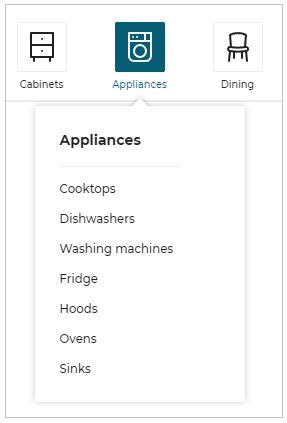
- Click the Cooktops appliance to open the cooktop catalog, as shown below:
Further, Appliances can be filtered from the catalog list using the parameters in combo box.
Example: Depth to 600, Width to 600 as shown below.
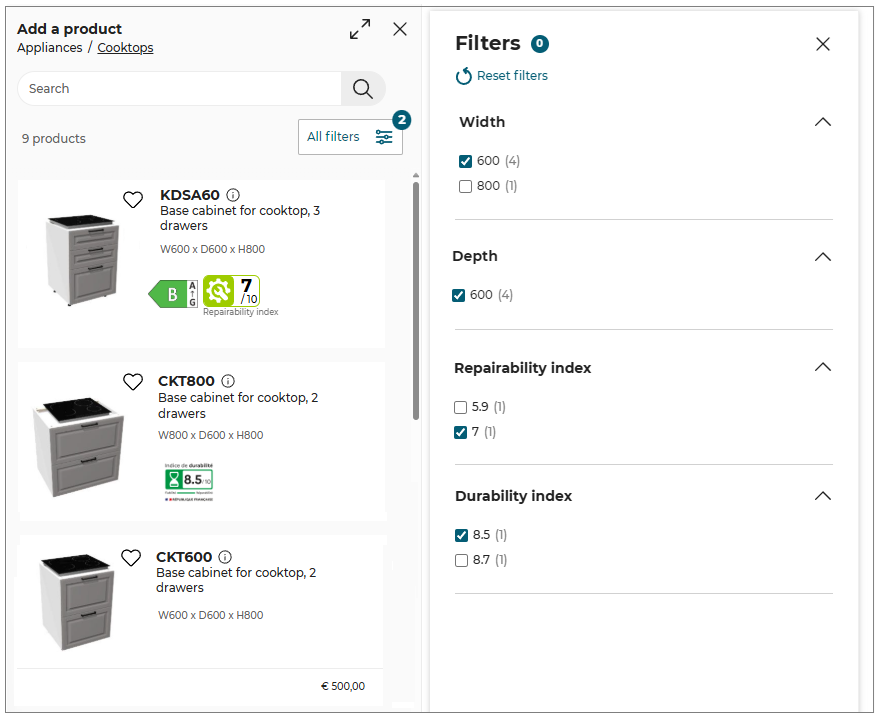
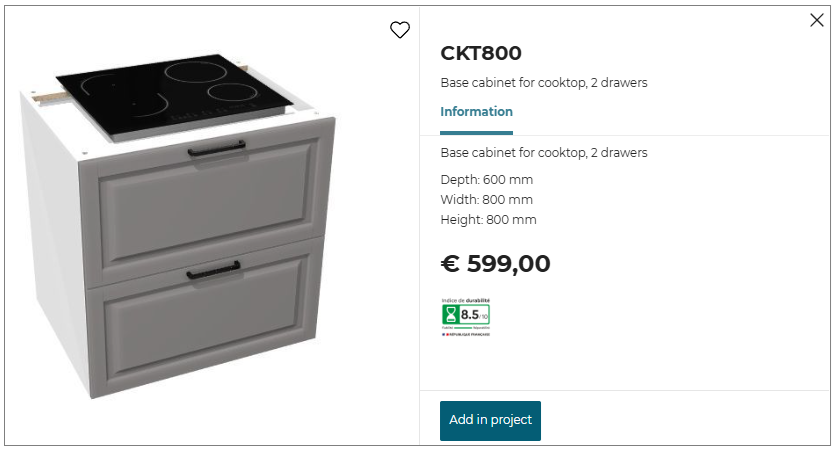
- The Repairability Index of the product is displayed in product catalog and product sheet.
- Due to minimum screen resolution constraints, each filter can contain a maximum of 49 values.
- If the filter contains 10 values or fewer, only one column is displayed.
- If the filter contains between 11 and 20 values, two columns are displayed with evenly spread values.
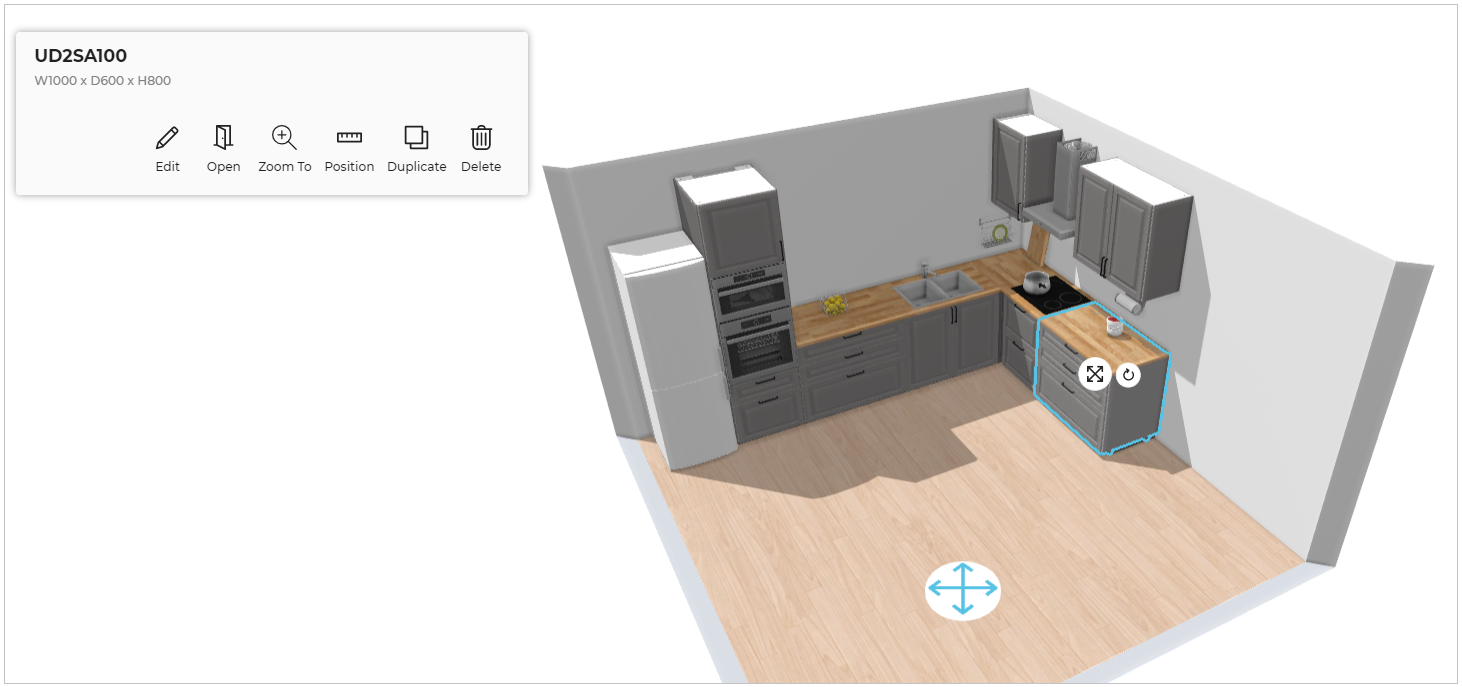
- Click appliance from the catalog to add it in the room.
Product is added to the kitchen as shown below.
- You can also add the Appliances in the room by drag and drop them from the catalog.
- When an appliance is added, it automatically matches itself to the style of the kitchen.
- Click the
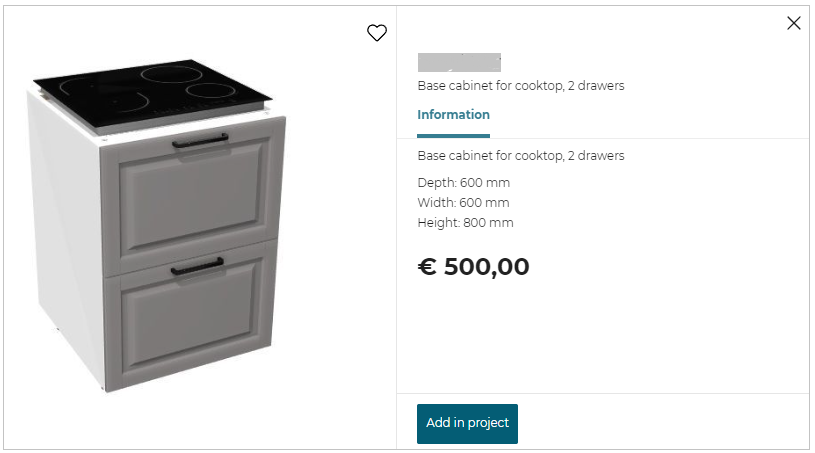
 icon, for appliance information.
The information panel appears as shown below:
Energy Efficiency Rating
⚙️ Set up: Application distribution parameter productDetails.energyLabelParameter 🔗. The Energy efficiency rating is displayed on the product card as configured in the application distribution parameter.
You can select the appliances based on the energy efficiency rating on the product card from the catalog, as shown below:
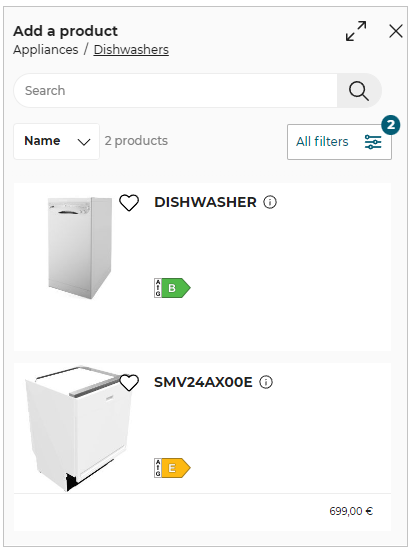
You can select the appliances based on the Old energy efficiency rating on the product card from the catalog, as shown below:


Editing Appliances
On selecting the appliance, toolbar appears as shown below.

| Tool | Description |
|---|---|
 Edit | Lists editing options. Editing options vary with products. |
 Open | Displays sections inside the appliance. |
 Zoom To | Zoom in to the selected item. |
 Position | Allows precise positioning, collision of items, and rotation with precision. |
 Duplicate | Adds similar appliance to the kitchen. The orientation of the duplicate product is consistent with the existing product. |
 Delete | Removes the appliance from the kitchen. |
Some of the editing options are as follows:
Replace entire product: Provides options of similar products to replace the entire product.

Front: Provides option to replace the front panels.

Handle: Replaces the handles.

Legs & plinths: Replaces the legs of appliance.

Cooktop: Provides option to replace the cooktop.

Editing options for above listed features are:
Add: Adds item in appliance.
Delete: Removes the item from appliance.
Options: Provides additional options regarding dimensions, side and so.
Replace: Provides options to change particular item with a similar item.
⚙️ Set up: Applicative Rules ApplyAllRule 🔗 and ApplyKitchenRule 🔗
If bothApplyAllRuleandApplyKitchenRuleare added in the applicative rule, then while selecting the Apply to all option, by defaultApplyKitchenRuleis applied.
- Apply to all: It applies the changes to all the products without impacting the other parameters of the products.
- Apply: It changes the parameters for the selected product.
- Apply to kitchen: It applies the changes to all the products and also impacts the other parameters of the products.
Apply and Apply to all options are only available when replacing the Handle, Front, Cover panels, or box of the cabinet.
However, these options are available when there is more than one cabinet in the kitchen.
Apply to all linears: It changes the feature for all the linears.
Apply to the selected linear: It changes the feature for the selected linear.
Apply to the selected linear and Apply to all linears option are only be available when replacing Worktop, Wall edge strip, Cornice, Deco strip or Plinth/Leg of the cabinet.
However, these options are available when there is more than one linear in the kitchen.
Note: In case of wall panel, wall panel is applied to the selected cabinet or the selected linear, Apply to the selected linear and Apply options are available.
In case of linear with fillers for wall panel, options for Apply to the selected linear and Apply are available, as fillers can have different wall panel.